How to Safely Use Public Computers: 12 Essential Security Tips
Public computers can be useful when you do not have access to your personal laptop, desktop, or smartphone. They may be available in libraries, schools, hotels, internet cafes, workplaces, airports, and other public locations.
However, using a computer that other people also use requires extra care. You may not know who used the device before you, what software is installed, or whether the computer has been properly maintained.
This does not mean you should never use a public computer. By following a few simple security practices, you can reduce many common risks.
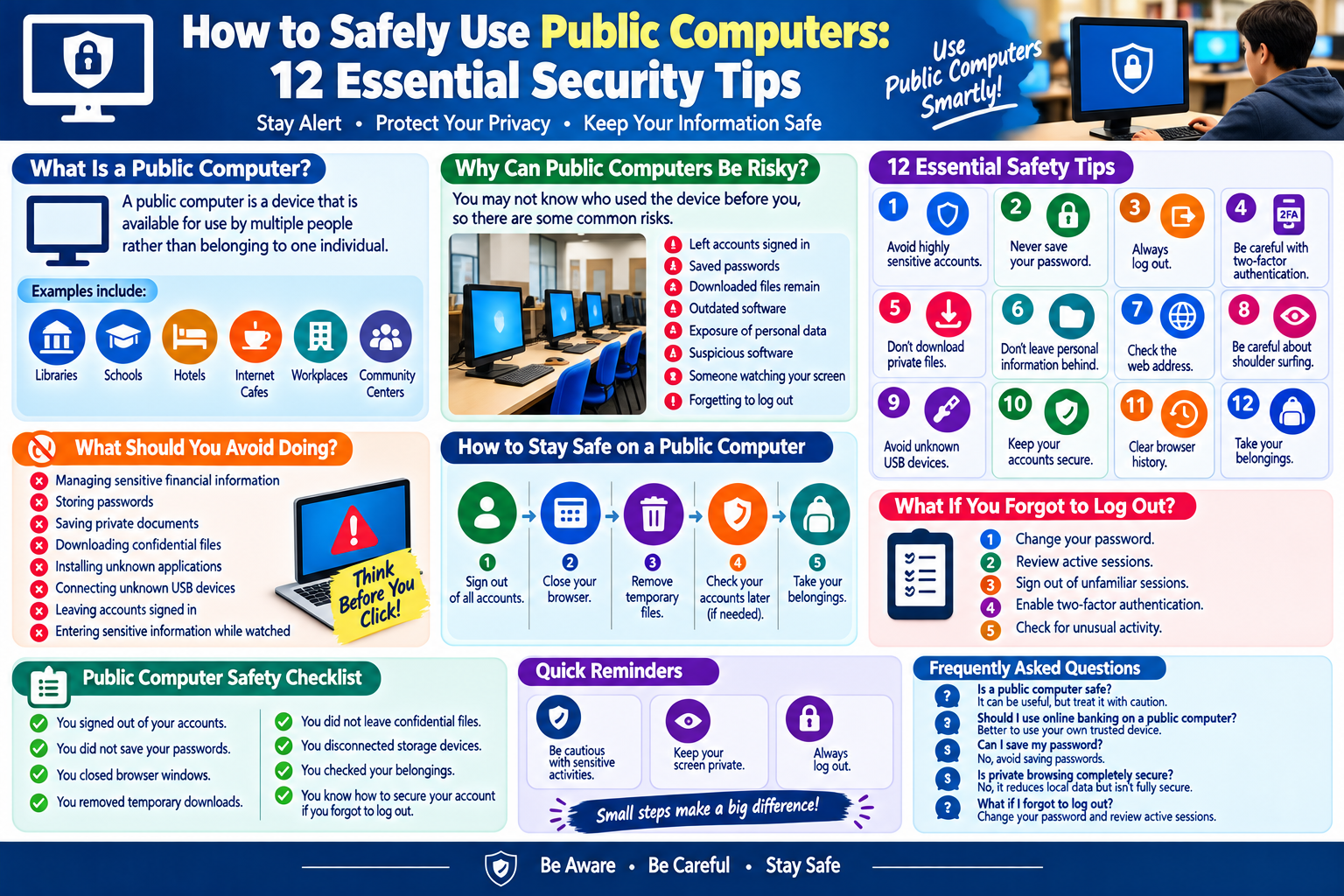
What Is a Public Computer?
A public computer is a device that is available for use by multiple people rather than belonging exclusively to one individual.
Examples include:
- Library computers
- School computers
- Hotel business-center computers
- Internet cafe computers
- Shared workplace computers
- Public-access computers
- Computers at community centers
Because multiple people may use the same device, you should avoid treating it like your personal computer.
Why Can Public Computers Be Risky?
A public computer may have several users throughout the day.
Potential risks include:
- Accidentally leaving an account signed in
- Saving passwords in the browser
- Downloading files that remain on the device
- Using an outdated application
- Exposure of private information
- Suspicious software
- Someone viewing your screen
- Forgetting to log out
The level of risk depends on how the computer is managed and what you use it for.
12 Essential Public Computer Safety Tips
1. Avoid Accessing Highly Sensitive Accounts
If possible, avoid using public computers for activities involving highly sensitive information.
For example, you may want to avoid accessing important financial accounts or entering confidential information unless there is no practical alternative.
Use your own trusted device whenever possible.
2. Never Save Your Password
When signing into a website, you may see an option asking whether you want to save your password.
Do not save passwords on a public computer.
Saved credentials could potentially be accessible to another user of the device.
3. Always Log Out
Simply closing a browser tab does not necessarily sign you out of an account.
After using an online service, use its official Log Out or Sign Out option.
This is especially important for email, social media, cloud storage, and other personal accounts.
4. Be Careful With Two-Factor Authentication
Two-factor authentication can provide additional account protection.
However, you should still be careful when signing into an account from a public computer.
Never share verification codes with another person.
After completing your activity, make sure the account is fully signed out.
5. Don’t Download Private Files
Avoid downloading confidential documents, photographs, passwords, or other sensitive files to a public computer.
If you absolutely need to download something temporarily, remember to remove it afterward and empty the appropriate download or temporary locations when practical.
6. Don’t Leave Personal Information Behind
Be careful about documents, notes, screenshots, and other files you create or download.
Before leaving, check whether you have accidentally stored personal information on the device.
7. Check the Web Address
Before entering a password or other information, look at the website address.
Make sure you are using the correct website and that the connection appears appropriate.
Be cautious with unfamiliar links or websites that suddenly ask for sensitive information.
8. Be Careful About Shoulder Surfing
Shoulder surfing means someone nearby watches your screen or keyboard to obtain information.
When using a public computer, look around before entering passwords or other private information.
Position yourself so that people nearby cannot easily see your screen.
9. Avoid Connecting Unknown USB Devices
Do not connect unknown USB drives or other storage devices to a public computer unless you have a good reason and understand the risks.
External devices can potentially contain unwanted software or files.
10. Keep Your Personal Accounts Secure
If you use a public computer to access an important account, consider reviewing your account’s recent activity afterward from your trusted device.
If you notice an unfamiliar login or session, take appropriate security action.
11. Be Careful With Browser History
Public computers may retain browsing history or other temporary information.
When finished, close your browsing session and follow the computer facility’s instructions for clearing personal browsing information.
Private browsing mode can reduce some local browser storage, but it does not make you completely anonymous.
12. Remember to Take Your Belongings
This sounds simple, but it is easy to forget personal items when concentrating on a computer.
Before leaving, check for:
- Phone
- Wallet
- USB drive
- Documents
- Headphones
- Other personal belongings
What Should You Avoid Doing on a Public Computer?
Some activities are better performed on your own trusted device.
Try to avoid:
- Managing highly sensitive financial information
- Storing passwords
- Saving private documents
- Downloading confidential files
- Installing unknown applications
- Connecting unknown USB devices
- Leaving accounts signed in
- Entering sensitive information while someone is watching
What to Do Before Leaving
Before you finish using a public computer, take a few moments to complete a quick security check.
Step 1: Sign Out
Log out of every website or service you used.
Step 2: Close Your Browser
Close browser windows and tabs.
Step 3: Remove Temporary Files
If you downloaded files temporarily, remove them when appropriate.
Step 4: Check Your Accounts
If you accessed an important account, consider checking recent activity later from your personal device.
Step 5: Take Your Belongings
Make sure you have everything you brought with you.
What If You Forgot to Log Out?
If you realize later that you forgot to sign out of an account on a public computer, do not panic.
Use your trusted device to:
- Change your password if necessary.
- Review active sessions or logged-in devices.
- Sign out of unfamiliar or shared sessions.
- Enable two-factor authentication if available.
- Check your account for unusual activity.
Many online services provide account security pages where users can review and manage active sessions.
Public Computer Safety Checklist
Before leaving a public computer, make sure:
- You signed out of your accounts.
- You did not save your passwords.
- You closed browser windows.
- You removed temporary downloads.
- You did not leave confidential documents behind.
- You disconnected personal storage devices.
- You checked your belongings.
- You know how to secure your account if you forgot to log out.
Frequently Asked Questions
Are public computers safe?
Public computers can be useful, but they should be treated with caution because many people may use the same device.
Should I use online banking on a public computer?
It is generally better to use a trusted personal device for sensitive financial activities whenever possible.
Can I save my password on a public computer?
No. Avoid saving passwords or allowing the browser to remember your login information.
Is private browsing completely secure?
No. Private browsing can reduce some locally stored browser information, but it does not provide complete security or anonymity.
What should I do if I forgot to log out?
Use your trusted device to review active sessions and secure the account. Changing your password and enabling additional security can also be appropriate.
Can I use a USB drive on a public computer?
You should be cautious. Only connect storage devices when necessary and when you trust the device and understand the potential risks.
Final Thoughts
Public computers provide convenient access to the internet when you need it, but they should not be treated exactly like your personal computer.
The most important habits are simple: do not save passwords, avoid unnecessary sensitive activities, protect your screen, download carefully, and always log out before leaving.
A few extra seconds of caution can help protect your accounts and personal information when using a shared computer.