How to Back Up Your Important Files: A Complete Beginner’s Guide
Digital files are an important part of everyday life. Photos, documents, school assignments, work files, videos, contacts, and other information may be stored on computers, smartphones, tablets, and external storage devices.
However, digital files can be lost for many reasons. A device may stop working, a file may be accidentally deleted, or malware could damage important information. Theft, physical damage, and unexpected technical problems can also result in data loss.
One of the simplest ways to reduce the risk is to create regular backups.
In this beginner-friendly guide, we will explain what a backup is, why it matters, different backup methods, and practical ways to protect your important files.
What Is a Backup?
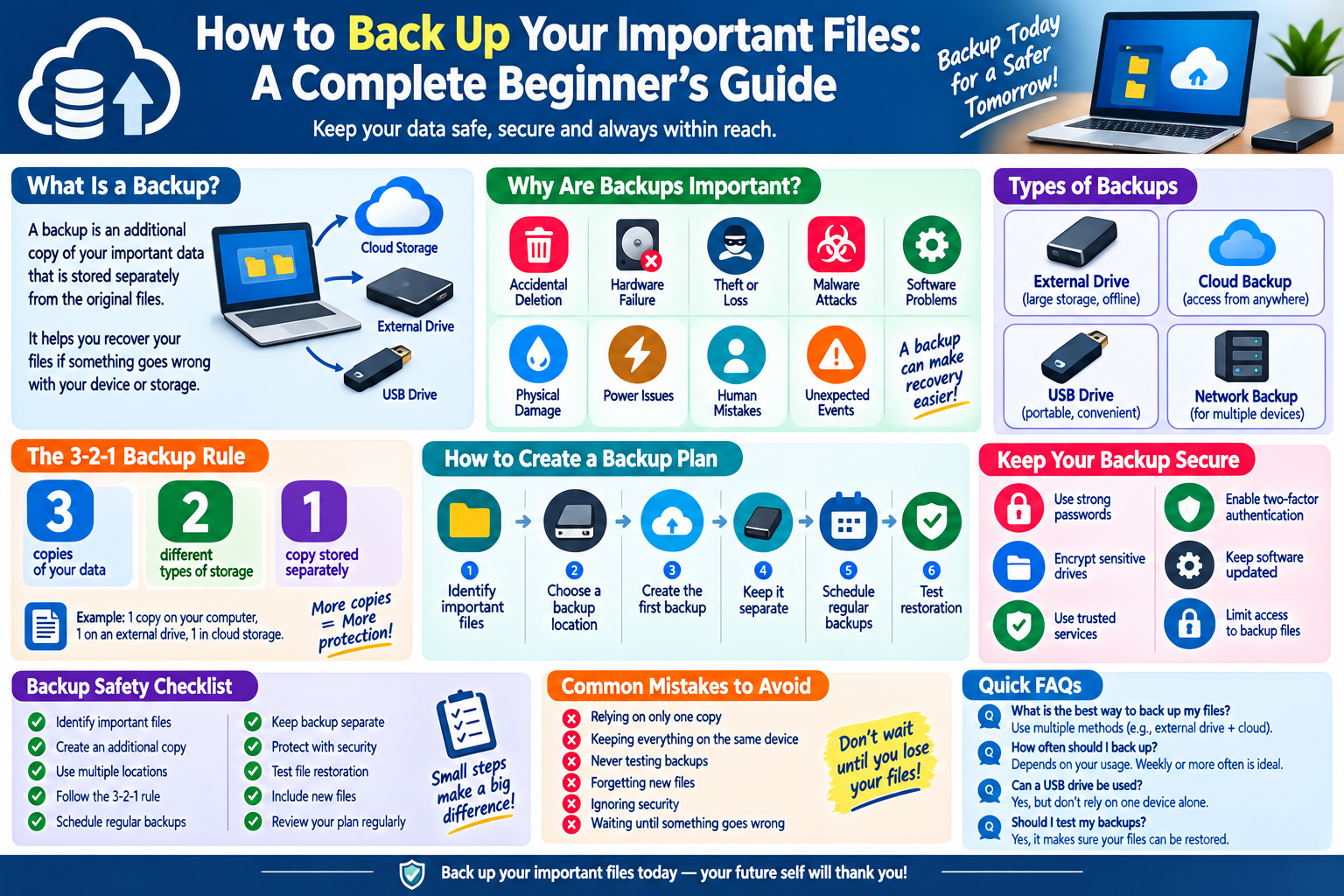
A backup is an additional copy of your important data that is stored separately from the original files.
For example, if your family photos are stored on your laptop, you could create another copy on an external drive or a trusted cloud storage service.
The purpose of a backup is to give you another copy if the original files become unavailable.
Why Are Backups Important?
Many people only think about backups after losing important files.
Common causes of data loss include:
- Accidental deletion
- Hard drive failure
- Lost or stolen devices
- Malware
- Software problems
- Physical damage
- Accidental formatting
- Power-related hardware damage
- Human mistakes
A backup cannot prevent these problems from happening, but it can make recovery much easier.
Common Types of Backups
There are several ways to back up your files.
1. External Drive Backup
An external hard drive or solid-state drive can store copies of your files.
This method is useful for large collections of photos, videos, documents, and other files.
2. Cloud Backup
Cloud services allow files to be stored on remote servers and accessed through the internet.
Cloud storage can be useful because your backup is stored separately from your physical device.
3. USB Drive Backup
USB flash drives are convenient for transferring and storing smaller amounts of data.
However, they should not be treated as the only backup for extremely important files.
4. Network Backup
Homes and businesses with multiple devices may use network storage to keep backup copies.
This can be useful when several computers need access to a centralized backup system.
The 3-2-1 Backup Rule
A commonly recommended approach is the 3-2-1 backup strategy.
It means keeping:
- 3 copies of important data
- On 2 different types of storage
- With 1 copy stored somewhere else
For example, you might keep the original files on your computer, another copy on an external drive, and another copy in cloud storage.
This approach provides protection against different types of failures.
How to Decide What to Back Up
Not every file needs the same level of protection.
Start with information that would be difficult or impossible to replace.
Important files may include:
- Family photographs
- Personal videos
- Work documents
- School assignments
- Financial records
- Important PDFs
- Creative projects
- Contact information
- Important email archives
- Website files
- Business documents
Make a list of your most important data before creating your backup plan.
How Often Should You Back Up?
The ideal backup schedule depends on how frequently your files change.
If you create or modify important files every day, frequent backups are useful.
For personal files, you might create backups weekly or more often. Businesses and professionals with constantly changing data may require automated backups several times a day.
The important thing is consistency.
A backup that was created six months ago may not help much if you have created hundreds of important files since then.
Automatic vs. Manual Backups
Manual Backups
With manual backups, you decide when to copy your files.
This method is simple, but it is easy to forget.
Automatic Backups
Automatic backup systems can regularly copy selected files without requiring you to remember each time.
For important information, automation can make the backup process more reliable.
How to Create a Simple Backup Plan
You do not need complicated equipment to start.
Step 1: Identify Important Files
Find the files you cannot easily replace.
Step 2: Choose a Backup Location
Select an external drive, cloud storage service, or another suitable location.
Step 3: Create the First Backup
Copy your important files to the backup location.
Step 4: Keep the Backup Separate
If possible, do not keep your only backup permanently connected to the same device.
Step 5: Schedule Regular Backups
Choose a schedule that matches how often your files change.
Step 6: Test Your Backup
Occasionally restore a few files to make sure your backup actually works.
Keep One Backup Away From Your Main Device
Keeping a backup in the same location as your computer does not protect against every problem.
For example, if a laptop and its external backup drive are both stolen, both copies may be lost.
A separate location can provide additional protection.
Cloud storage is one option. Another is keeping a backup drive in a secure, separate location.
Protect Your Backup
A backup can contain sensitive information, so it should also be protected.
Consider:
- Using strong account passwords
- Enabling two-factor authentication
- Encrypting sensitive backup drives
- Keeping backup software updated
- Using trusted storage services
- Physically protecting external drives
- Limiting access to backup files
A backup should not become an easy target for unauthorized access.
What If Your Computer Gets Infected?
If malware infects your computer, immediately connecting an unprotected backup drive can potentially put the backup at risk.
For this reason, it is useful to maintain backup copies that are not constantly connected to the computer.
If you suspect a serious infection, disconnect the affected device from the network and follow appropriate security and recovery procedures.
How to Check Whether a Backup Works
Creating a backup is only part of the process.
You should also test it.
Choose a few files and try restoring them to another location.
Check that:
- The files open correctly.
- The folders are complete.
- Photos are viewable.
- Documents are readable.
- File names and dates are preserved when necessary.
A backup that cannot be restored is not a reliable backup.
Common Backup Mistakes to Avoid
Relying on Only One Copy
If you have only one copy, it is not really a backup.
Keeping Everything on the Same Device
If the device fails, you may lose everything.
Never Testing Backups
You should occasionally verify that your backup can actually be restored.
Forgetting New Files
A backup plan should include newly created and modified files.
Ignoring Security
Backup files can contain private information and should be protected.
Waiting Until Something Goes Wrong
The best time to create a backup is before you experience data loss.
Backup Checklist
Use this simple checklist to improve your data protection:
- Identify your most important files.
- Create at least one additional copy.
- Use more than one storage location when practical.
- Consider the 3-2-1 backup approach.
- Schedule regular backups.
- Keep important backups separate from your main device.
- Protect backups with appropriate security.
- Test file restoration regularly.
- Include newly created files.
- Review your backup plan periodically.
Frequently Asked Questions
What is the best way to back up important files?
There is no single method that is best for everyone. Using multiple backup locations, such as an external drive and cloud storage, can provide stronger protection.
Is cloud storage a backup?
Cloud storage can be used as part of a backup strategy, but simply synchronizing files does not always provide complete backup protection. A good backup system should allow you to recover previous or deleted versions when necessary.
How often should I back up my computer?
It depends on how often your data changes. If you regularly create important files, frequent or automatic backups are recommended.
Can a USB drive be used for backups?
Yes. USB drives can be useful for storing backup copies, especially for smaller collections of important files. For critical data, however, it is better not to rely on one storage device alone.
Should I test my backups?
Yes. Testing backups is important because it confirms that your files can actually be restored when needed.
What is the 3-2-1 backup rule?
The 3-2-1 approach recommends keeping three copies of important data, using two different storage types, with one copy stored separately from the main location.
Final Thoughts
Backing up your important files is one of the simplest ways to prepare for unexpected data loss. Hardware failures, accidental deletion, malware, theft, and other problems can happen without warning.
A good backup strategy does not have to be complicated. Start by identifying your most important files, create additional copies, store them in separate locations, and regularly check that they can be restored.
The most important rule is simple: do not wait until you lose your files before creating a backup.