What Is Computer Storage and How Does It Work? A Beginner’s Guide
Every computer, smartphone, and other digital device needs a place to store information. Photos, videos, documents, applications, operating system files, and downloaded content all require storage space.
Computer storage is one of the most important parts of a digital device because it allows information to remain available even after the device is turned off. In this beginner-friendly guide, we will explain what computer storage is, how it works, the different types of storage, and how to manage storage space effectively.
What Is Computer Storage?
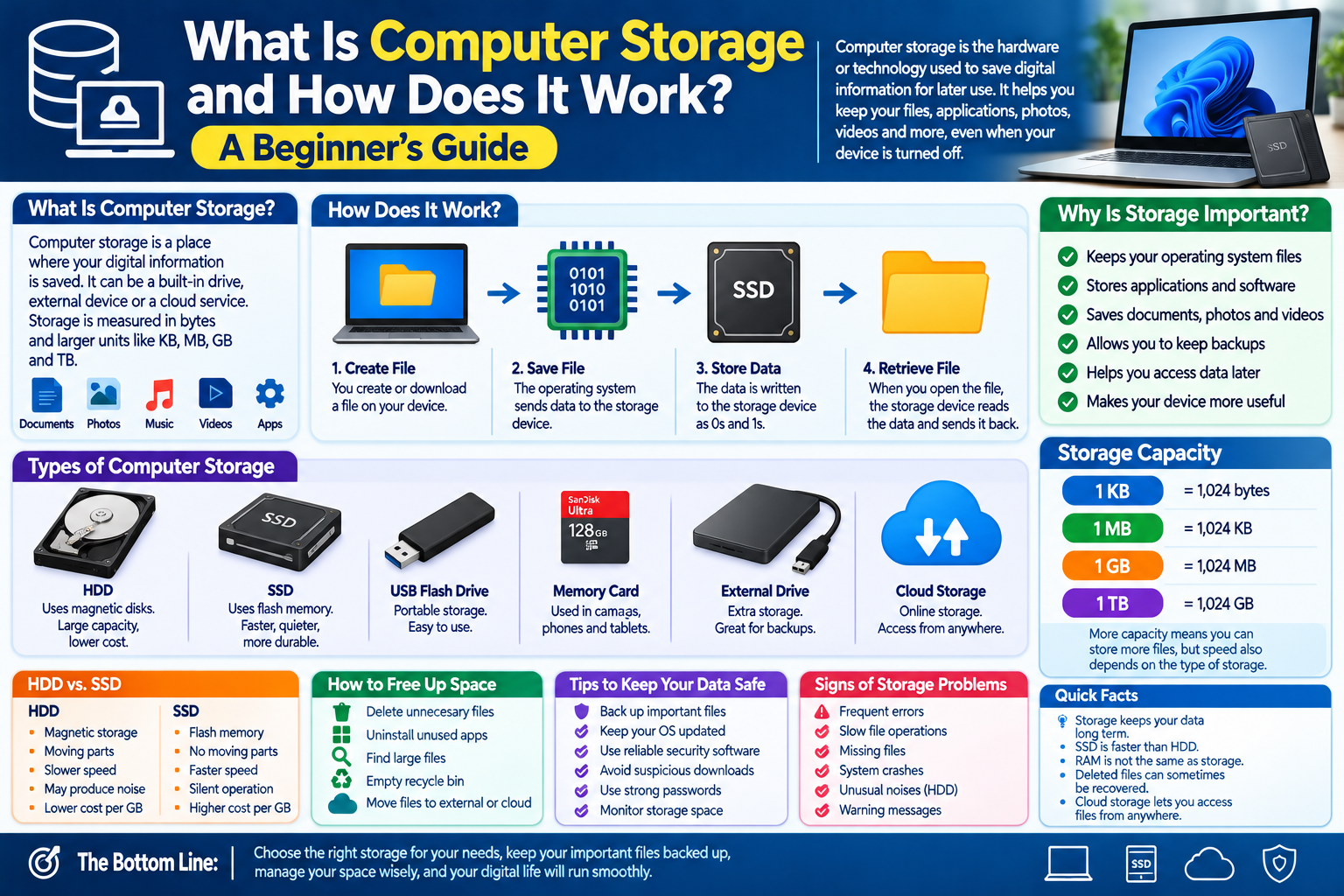
Computer storage is the hardware or technology used to save digital information for later use.
When you create a document, install an application, download a video, or save a photograph, the information needs to be stored somewhere.
Storage can be found in many forms, including:
- Hard disk drives (HDDs)
- Solid-state drives (SSDs)
- USB flash drives
- Memory cards
- External storage drives
- Network storage
- Cloud storage
Storage capacity is commonly measured in bytes and larger units such as kilobytes, megabytes, gigabytes, and terabytes.
Why Is Storage Important?
Without storage, a computer would not be able to permanently keep most of the information you create or download.
Storage is used for:
- Operating system files
- Applications and software
- Documents
- Photos
- Videos
- Music
- Games
- Downloads
- Temporary files
- Backups
For example, when you save a photo to your computer, the photo is converted into digital data and written to a storage device.
How Does Computer Storage Work?
At a basic level, storage works by recording digital data so that it can be retrieved later.
Digital information is represented using binary data, consisting of 0s and 1s.
When you save a file, the computer’s operating system communicates with the storage device and tells it where and how the information should be stored.
When you open the file later, the storage device reads the stored data and sends it back to the computer.
A simplified process looks like this:
Create File → Save File → Storage Device → Retrieve File → Open File
The exact technology used to store the information depends on the type of storage device.
What Is a Storage Drive?
A storage drive is a device used to store digital information.
Modern computers commonly use SSDs, while older computers often used HDDs.
A storage drive may contain:
- Operating system files
- Applications
- Personal files
- System data
- Other digital information
The drive is usually divided into logical sections that the operating system can manage.
What Is an HDD?
HDD stands for Hard Disk Drive.
An HDD stores data using magnetic surfaces on spinning disks called platters.
A mechanical read/write head moves across the platters to access information.
Because HDDs contain moving mechanical components, they generally operate differently from solid-state storage.
Advantages of HDDs
- Available in large capacities
- Often less expensive per gigabyte
- Useful for large collections of files
- Commonly used for desktop storage and backups
Limitations of HDDs
- Mechanical moving parts
- Generally slower than modern SSDs
- Can be affected by physical shock
- May produce mechanical noise
What Is an SSD?
SSD stands for Solid-State Drive.
Unlike an HDD, an SSD does not use spinning magnetic platters. It stores data using flash memory.
SSDs are widely used in modern computers because they can provide fast access to stored information.
Advantages of SSDs
- Fast file access
- Faster system startup
- No spinning mechanical parts
- Quiet operation
- Good resistance to everyday movement
Limitations of SSDs
- Price per gigabyte can vary
- Storage capacity may cost more than comparable HDD capacity
- Like all storage devices, SSDs can eventually fail
HDD vs. SSD
Both HDDs and SSDs are storage technologies, but they use different methods.
| Feature | HDD | SSD |
|---|---|---|
| Technology | Magnetic storage | Flash memory |
| Moving parts | Yes | No |
| Typical access speed | Slower | Faster |
| Noise | May produce mechanical noise | Silent |
| Shock resistance | Generally lower | Generally higher |
| Common use | Large storage and archives | Operating systems and applications |
The appropriate choice depends on factors such as capacity, budget, performance requirements, and intended use.
What Is Flash Storage?
Flash storage is a type of non-volatile memory used to store digital information.
Non-volatile means that the information can remain stored even when power is removed.
Flash storage is used in:
- SSDs
- USB flash drives
- Memory cards
- Smartphones
- Tablets
- Other electronic devices
Flash technology allows manufacturers to build small storage devices without relying on spinning disks.
What Is External Storage?
External storage is a storage device connected to a computer from outside the main system.
Examples include:
- External HDDs
- External SSDs
- USB flash drives
- Memory card readers
External storage can be useful for transferring files, creating backups, or expanding available storage.
What Is Cloud Storage?
Cloud storage allows files to be stored on remote servers that are accessed through the internet.
Instead of keeping a file only on your computer, you can upload it to a cloud storage service.
A simplified example is:
Computer → Internet → Cloud Storage Server
Cloud storage can make files accessible from multiple devices, depending on the service and account settings.
However, users should understand the provider’s storage limits, privacy policies, security practices, and terms.
What Is Storage Capacity?
Storage capacity describes how much information a storage device can hold.
Common units include:
- Byte (B)
- Kilobyte (KB)
- Megabyte (MB)
- Gigabyte (GB)
- Terabyte (TB)
For everyday computing, gigabytes and terabytes are commonly used to describe storage capacity.
For example, a computer may have a 512 GB SSD, while an external drive might provide several terabytes of storage.
Why Does Available Storage Become Full?
Storage space can gradually decrease as you install applications and save files.
Common causes include:
- Large videos
- High-resolution photos
- Installed applications
- Games
- Downloads
- Temporary files
- Duplicate files
- Old backups
- Operating system files
A drive with very little free space can also make storage management more difficult.
How to Check Storage Space
Most operating systems provide a built-in storage management screen.
You can usually see:
- Total storage capacity
- Used space
- Available space
- Categories consuming storage
Typical categories include applications, documents, images, videos, system files, and temporary data.
Checking storage regularly can help you identify what is consuming space.
How to Free Up Storage Space
If your computer is running low on storage, you can review unnecessary files.
1. Delete Unneeded Downloads
Open your Downloads folder and remove files you no longer need.
2. Remove Unused Applications
Uninstall applications that you no longer use.
3. Review Large Files
Search for large videos, archives, installers, and other files.
4. Empty the Recycle Bin
Deleted files may continue occupying space until the recycle bin is emptied.
5. Remove Temporary Files
Many operating systems provide tools for removing unnecessary temporary data.
6. Move Large Files
Move files you rarely use to an external drive or another suitable storage location.
7. Review Duplicate Files
Duplicate photos, videos, and documents can consume significant space.
Always check files carefully before deleting them.
What Is a Partition?
A partition is a logical division of a physical storage device.
One physical drive can contain multiple partitions.
For example, a computer with one physical SSD might have separate partitions for different purposes.
Partitions can help organize storage, but they do not automatically provide a backup. If the physical drive fails, multiple partitions on that same drive may be affected.
What Is File System?
A file system is a method used by an operating system to organize and manage data on a storage device.
It helps the computer understand:
- Where files are located
- How files are named
- How storage space is organized
- Which parts of the drive contain data
Different operating systems and devices can support different file systems.
What Happens When You Delete a File?
When you delete a file, the operating system generally marks the space associated with that file as available for future use.
Depending on the device and operating system, deleted files may first move to a recycle bin or trash area.
This is why accidentally deleted files may sometimes be recoverable.
However, recovery is not guaranteed, especially after storage space has been reused.
Does More Storage Make a Computer Faster?
More storage capacity and faster storage are different things.
For example, upgrading from a 256 GB SSD to a 1 TB SSD gives you more capacity, but it does not necessarily make the computer faster if both drives have similar performance.
On the other hand, replacing an older HDD with a modern SSD can noticeably improve tasks such as system startup and application loading.
Storage and Computer Performance
Storage can affect the overall experience of using a computer.
A faster storage device can reduce the time needed to:
- Start the operating system
- Open applications
- Load files
- Transfer data
However, computer performance also depends on other components such as the CPU, RAM, graphics hardware, software, and operating system.
Why Should You Back Up Your Storage?
Important files should not exist in only one location.
Storage devices can fail because of:
- Hardware problems
- Accidental damage
- Malware
- File corruption
- Theft
- User mistakes
A backup provides another copy of important information.
For valuable files, consider keeping backups on a separate physical device or an appropriate cloud service.
Storage Safety Tips
Follow these simple practices to protect your files:
- Keep important files backed up.
- Avoid disconnecting external drives during active file transfers.
- Keep your operating system updated.
- Use reputable security software where appropriate.
- Protect important accounts with strong passwords.
- Be careful when downloading unknown files.
- Safely eject removable storage when required.
- Monitor available storage space.
- Replace storage devices showing signs of failure.
- Keep more than one copy of critical data.
Signs of Possible Storage Problems
A storage device may be experiencing problems if you notice:
- Unexpected file errors
- Frequent system crashes
- Missing files
- Very slow file operations
- Unusual noises from an HDD
- Operating system warnings
- Files becoming corrupted
If you suspect a drive is failing, back up important information as soon as possible and avoid unnecessary use of the device.
Storage Checklist for Beginners
Use this simple checklist to manage your computer storage:
- Check available storage regularly.
- Remove unnecessary files.
- Uninstall unused applications.
- Review large files.
- Keep important files backed up.
- Use external or cloud storage when appropriate.
- Monitor the condition of older drives.
- Keep your operating system updated.
- Avoid downloading files from suspicious sources.
Frequently Asked Questions
What is computer storage used for?
Computer storage is used to save digital information such as operating system files, applications, documents, photos, videos, and other data.
Is an SSD better than an HDD?
SSDs and HDDs use different technologies. SSDs generally provide faster access and have no moving mechanical parts, while HDDs can offer large capacities at a lower cost per gigabyte in many situations.
Is RAM the same as storage?
No. RAM is temporary working memory used by the computer while programs are running. Storage is designed to keep information for longer periods, including when the device is turned off.
Can a computer work without storage?
A conventional computer needs some form of storage to keep its operating system and other persistent data. However, computers can use different storage arrangements depending on their design.
How much storage does a computer need?
The amount depends on how you use the computer. Basic users may need less storage, while people who work with large videos, games, applications, or extensive file collections may need considerably more.
Can deleted files be recovered?
Sometimes. Recovery depends on the device, operating system, type of deletion, and whether the storage space has been reused. Important files should always be backed up rather than relying on recovery tools.
Final Thoughts
Computer storage allows digital devices to save and retrieve information. HDDs, SSDs, USB drives, memory cards, and cloud storage are all examples of technologies used to store data.
Understanding storage capacity, storage types, backups, and basic file management can help beginners use their computers more effectively. The most important habit is to keep important information backed up and regularly review how storage space is being used.