What Is a Web Browser and How Does It Work? A Beginner’s Guide
Every day, millions of people use the internet to search for information, read news, watch videos, shop online, communicate with others, and access websites.
But have you ever wondered how a website appears on your screen after you type an address into the search bar?
The answer involves a piece of software called a web browser.
Web browsers are among the most important tools for using the internet. They allow users to access websites, interact with online services, download files, watch videos, and perform many other tasks.
In this beginner-friendly guide, we will explain what a web browser is, how it works, the most important browser features, and how to use a browser safely and efficiently.
What Is a Web Browser?
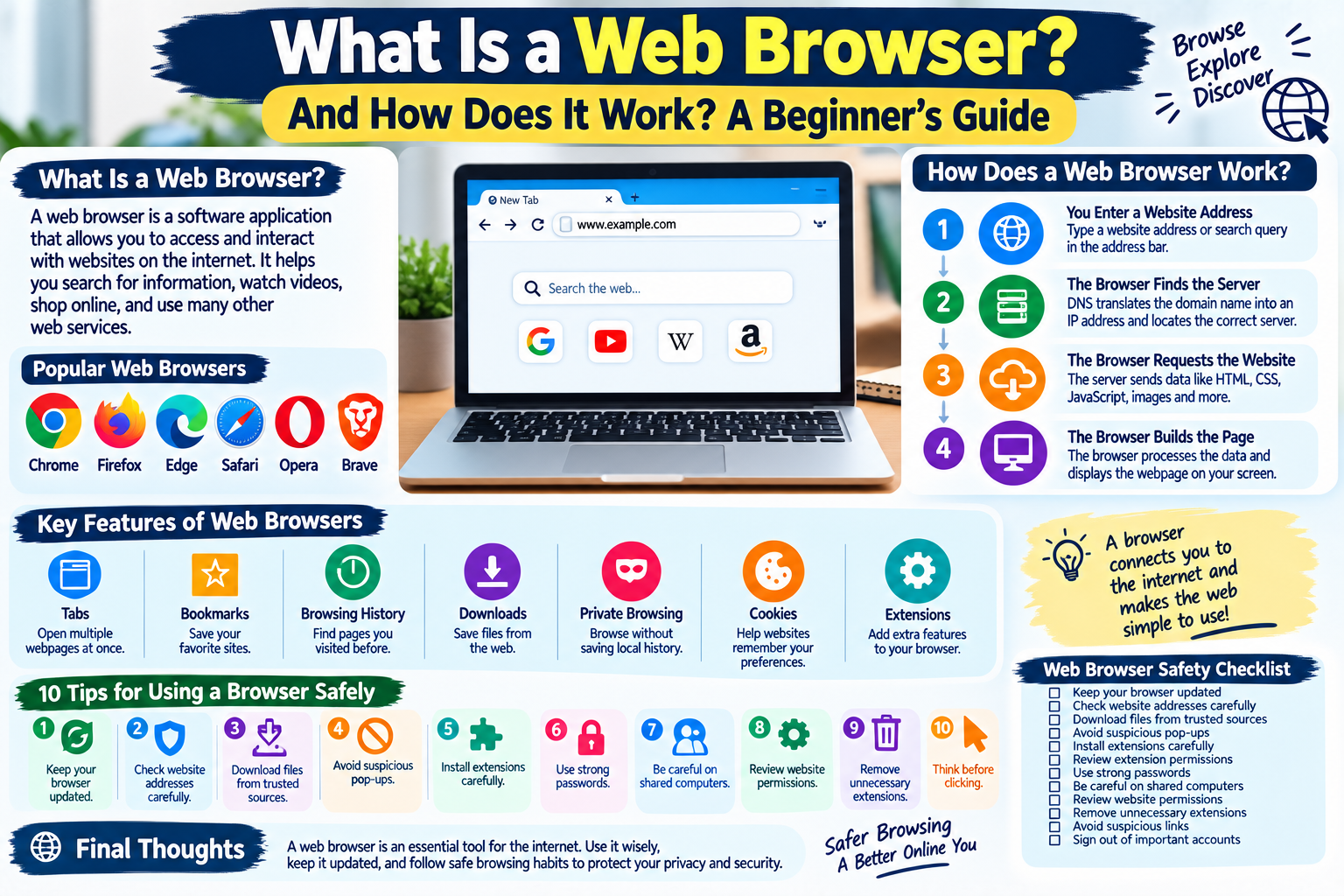
A web browser is a software application that allows you to access and interact with websites on the internet.
When you enter a website address or search for something online, the browser communicates with servers and retrieves the information needed to display the webpage.
Popular browsers include:
- Google Chrome
- Mozilla Firefox
- Microsoft Edge
- Apple Safari
- Opera
- Brave
Different browsers have different designs and features, but their basic purpose is similar: to help users access and interact with web content.
How Does a Web Browser Work?
Although browsing appears simple, several steps happen behind the scenes.
Step 1: You Enter a Website Address
You may type something like:
example.com
into the browser’s address bar.
The browser then needs to determine where that website is located.
Step 2: The Browser Finds the Server
Websites are hosted on servers connected to the internet.
The browser uses the website’s domain name to locate the appropriate server.
A system called DNS (Domain Name System) helps translate domain names into IP addresses that computers can use to communicate.
Step 3: The Browser Requests the Website
After locating the server, the browser sends a request for the webpage.
The server processes the request and sends information back to the browser.
This information can include:
- HTML
- CSS
- JavaScript
- Images
- Fonts
- Videos
- Other website resources
Step 4: The Browser Builds the Page
The browser processes the information it receives.
It interprets HTML to understand the structure of the page, CSS to determine its appearance, and JavaScript to provide interactive features.
The browser then displays the webpage on your screen.
This entire process can happen very quickly.
What Is the Address Bar?
The address bar is the field at the top of a browser window where you can enter a website address or search query.
For example, you can enter:
www.example.com
Or you can type a question such as:
How does cloud storage work?
Depending on the browser and its settings, a search engine may process the search query.
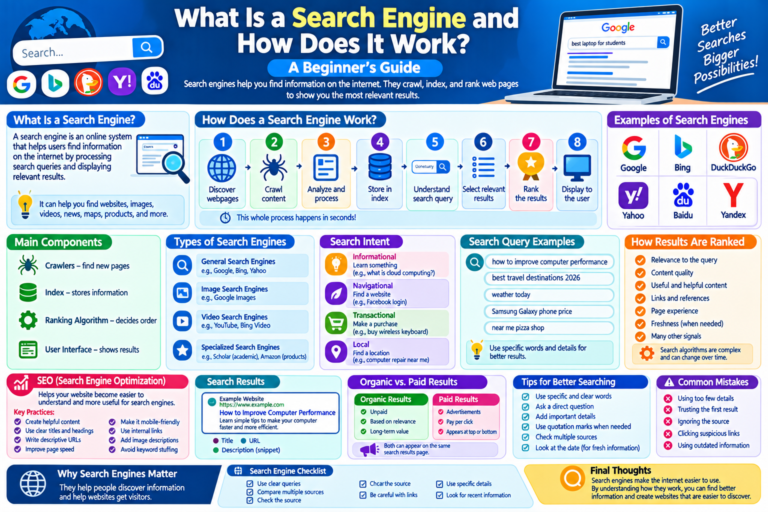
What Is a Search Engine?
A search engine and a web browser are not the same thing.
A web browser is software used to access websites.
A search engine helps users find information on the web.
For example:
- Chrome is a browser.
- Firefox is a browser.
- Safari is a browser.
- Google Search is a search engine.
- Bing is a search engine.
You can use a search engine inside a web browser.
Important Features of Modern Web Browsers
Modern browsers provide many useful features.
1. Tabs
Tabs allow you to open multiple webpages in the same browser window.
Instead of opening a separate window for every website, you can organize websites using different tabs.
For example, you might have one tab for:
- News
- Research
- Online shopping
- Work
2. Bookmarks
Bookmarks allow you to save websites that you frequently visit.
Instead of typing the website address every time, you can open it from your bookmarks.
Bookmarks are useful for:
- Favorite websites
- Work resources
- Research pages
- Online tools
- Frequently used services
3. Browsing History
Browsers normally keep a history of websites you have visited.
This can make it easier to find a webpage you previously opened.
Most browsers also allow users to delete browsing history.
4. Downloads
Web browsers can download files from websites.
Depending on the browser and device, downloaded files may include:
- Documents
- Images
- PDFs
- Software
- Videos
- Other files
Always make sure you trust the source before downloading a file.
5. Private or Incognito Browsing
Many browsers offer a private browsing mode.
Depending on the browser, this mode can reduce the amount of local browsing information saved after the session.
However, private browsing does not make you completely anonymous online.
Your internet service provider, employer, network administrator, websites, or other systems may still be able to observe certain activity.
What Are Browser Cookies?
Cookies are small pieces of information that websites can store in your browser.
They can be used for purposes such as:
- Remembering login sessions
- Saving preferences
- Keeping items in a shopping cart
- Understanding website usage
- Supporting certain website features
Cookies can make websites more convenient, but privacy settings can allow you to control some cookie behavior.
What Is Browser Cache?
A browser cache stores certain website resources locally on your device.
For example, images and other files may be temporarily stored so that a website can load more efficiently the next time you visit it.
Sometimes an outdated cache can cause display problems.
Clearing the cache can occasionally help when a website is not loading correctly, although it is not always necessary.
What Are Browser Extensions?
Browser extensions are small software components that add features to a browser.
Examples include tools for:
- Password management
- Productivity
- Accessibility
- Language assistance
- Shopping
- Web development
However, you should install extensions carefully.
Only install extensions from trustworthy sources and review the permissions they request.
An extension with excessive or unnecessary permissions can create privacy or security concerns.
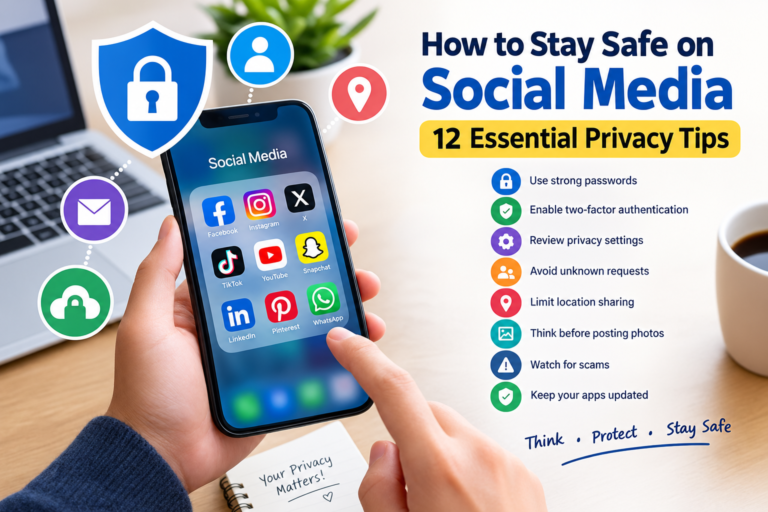
10 Tips for Using a Web Browser Safely
1. Keep Your Browser Updated
Browser updates often include security improvements and bug fixes.
Use a current version whenever possible.
2. Download Software From Trusted Sources
Avoid downloading unknown programs from suspicious websites.
If possible, obtain software from the developer’s official website or a trusted application store.
3. Check Website Addresses
Before entering sensitive information, check the website address carefully.
Look for:
- Correct spelling
- The expected domain
- A secure connection
- Unexpected redirects
A professional-looking webpage does not automatically mean the website is trustworthy.
4. Be Careful With Pop-Ups
Some websites display misleading pop-ups claiming that your device has a virus or that you have won a prize.
Do not automatically click such messages.
Close suspicious pop-ups and use trusted security software when necessary.
5. Avoid Suspicious Extensions
Do not install browser extensions simply because a website tells you that you need one.
Research the extension first and check its permissions.
6. Use Strong Passwords
Your browser may offer password-management features.
If you use saved passwords, protect your browser profile and device with appropriate security measures.
7. Be Careful on Shared Computers
If you use a public or shared computer, avoid saving passwords and sensitive information unless you fully understand the device’s security.
Always sign out of important accounts when finished.
8. Review Browser Permissions
Websites may request access to features such as:
- Camera
- Microphone
- Location
- Notifications
Only allow permissions when they are necessary and appropriate.
9. Remove Unnecessary Extensions
Review installed extensions from time to time.
Remove extensions you no longer use or do not recognize.
This can help keep your browser cleaner and reduce unnecessary permissions.
10. Think Before Clicking
Do not click every link simply because it appears on a webpage, email, or social media post.
If something looks suspicious, stop and verify it first.
How Can You Make a Browser Faster?
If your browser feels slow, several basic steps may help.
Close Unnecessary Tabs
Too many open tabs can use significant system resources.
Close tabs you no longer need.
Remove Unused Extensions
Extensions can consume resources.
Remove extensions that are unnecessary.
Clear Temporary Data
Clearing certain temporary browser data can sometimes help with performance or website problems.
Update the Browser
Make sure you are using a current version.
Restart the Browser
A simple restart can sometimes resolve temporary performance problems.
Which Web Browser Should You Use?
There is no single browser that is perfect for everyone.
When choosing a browser, consider:
- Speed
- Privacy features
- Security
- Device compatibility
- Extension support
- Ease of use
- Synchronization features
- Accessibility
For everyday browsing, a mainstream browser with regular security updates is generally a sensible starting point.
Simple Web Browser Safety Checklist
Use this checklist to improve your browsing habits:
- Keep your browser updated
- Check website addresses carefully
- Download files from trusted sources
- Avoid suspicious pop-ups
- Install extensions carefully
- Review extension permissions
- Use strong passwords
- Be careful on shared computers
- Review website permissions
- Remove unnecessary extensions
- Avoid suspicious links
- Sign out of important accounts on shared devices
Frequently Asked Questions
Is a web browser the same as the internet?
No. The internet is a global network of connected systems, while a web browser is software that allows you to access websites and web-based services.
Which browser is best?
The best browser depends on your needs. Consider security, privacy, speed, compatibility, extensions, and ease of use when choosing one.
Does private browsing make me anonymous?
No. Private browsing mainly changes what information is stored locally on your device during the session. It does not make you completely anonymous online.
Are browser extensions safe?
Many extensions are legitimate and useful, but you should only install extensions from trustworthy sources and review the permissions they request.
Why is my browser running slowly?
Possible causes include too many open tabs, unnecessary extensions, outdated software, limited system resources, or temporary browser data.
Should I keep my browser updated?
Yes. Keeping your browser updated can provide important security improvements and bug fixes.
Final Thoughts
A web browser is one of the most important tools for accessing the modern internet. It connects users with websites, online applications, information, entertainment, and communication services.
Understanding how browsers work can help you use them more effectively and safely.
Keep your browser updated, be careful with downloads and extensions, check website addresses, protect your passwords, and think before clicking unfamiliar links.
A safer browsing experience starts with good online habits.