How to Organize Digital Files: 12 Practical Tips for Beginners
As we use computers, smartphones, and other digital devices every day, the number of files we create can quickly become difficult to manage. Photos, documents, videos, downloads, invoices, presentations, and other files can easily fill storage and make it hard to find important information.
A simple digital file organization system can save time, reduce confusion, and make important files easier to access. You do not need advanced technical skills to organize your files effectively.
In this guide, we will explain how to organize digital files, create useful folders, name files properly, manage downloads, remove unnecessary files, and maintain a simple system that works for everyday use.
Why Is Digital File Organization Important?
Organized files are easier to find and manage.
Without a clear system, you may spend several minutes searching for a document that could have been located in seconds.
Good file organization can help you:
- Find files quickly
- Reduce duplicate files
- Save storage space
- Protect important documents
- Keep work and personal files separate
- Make backups easier
- Reduce digital clutter
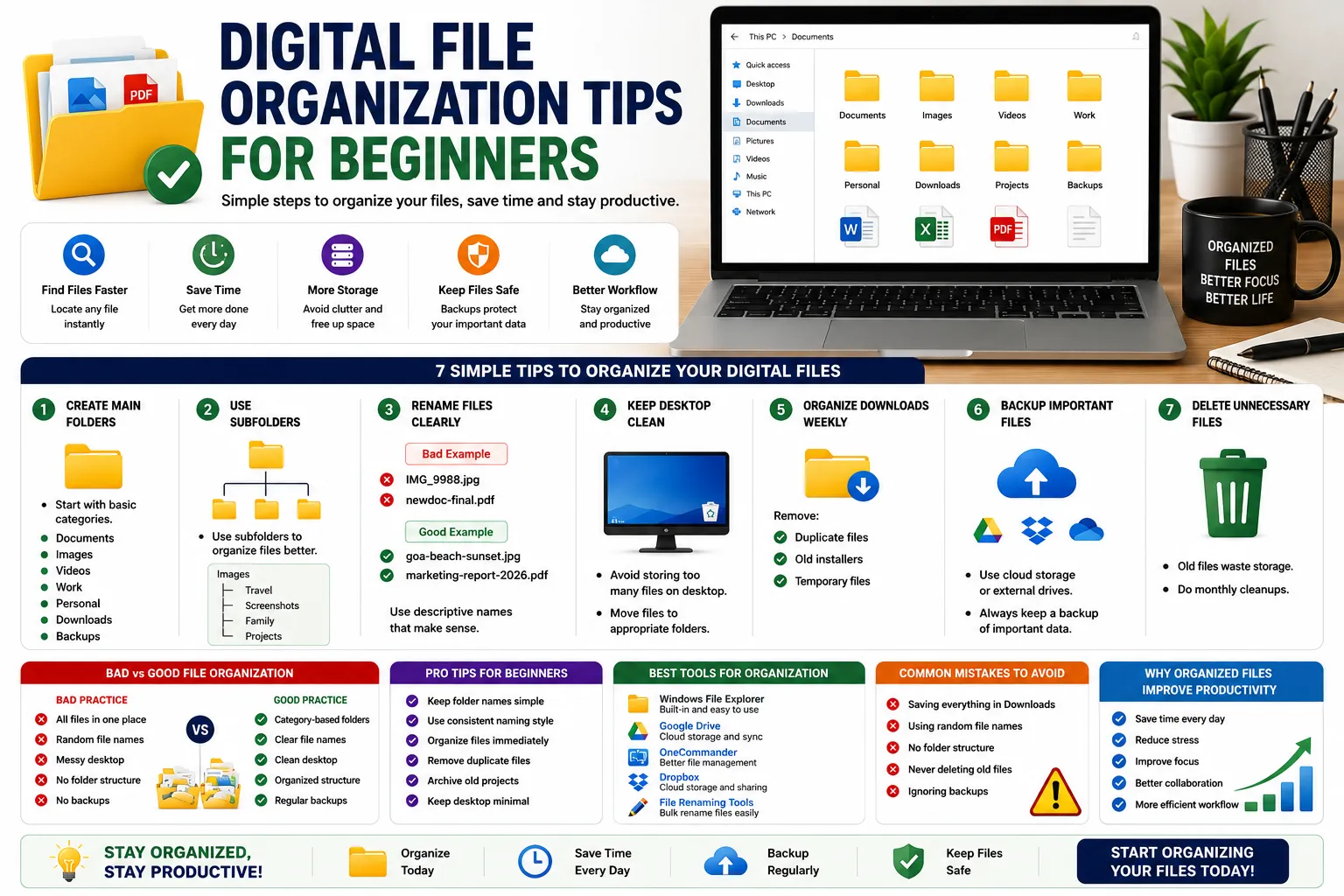
1. Create a Simple Folder Structure
The first step is to create folders based on the types of files you regularly use.
For example, you could create folders such as:
- Documents
- Photos
- Videos
- Work
- Personal
- School
- Finance
- Projects
- Downloads
Avoid creating hundreds of folders. A simple structure is usually easier to maintain.
2. Use Descriptive File Names
A file named document123.pdf does not tell you much about its contents.
Instead, use a meaningful name such as:
Monthly-Budget-September-2026.pdf
Good file names should make it possible to understand the file without opening it.
3. Use Dates When Appropriate
Dates can be extremely useful for documents and projects.
For example:
2026-09-13-Project-Report.docx
Using the year-month-day format can also make files easier to sort chronologically.
4. Keep Related Files Together
If several files belong to the same project, store them in one folder.
For example:
Website Project
- Research
- Images
- Documents
- Reports
- Final Files
This makes it easier to locate everything related to the same project.
5. Clean Your Downloads Folder
The Downloads folder can become one of the messiest locations on a computer.
Downloaded installers, PDFs, images, ZIP files, and temporary documents can accumulate quickly.
Regularly review your Downloads folder and:
- Move important files
- Delete files you no longer need
- Rename useful files
- Organize documents into appropriate folders
6. Remove Duplicate Files
Duplicate files take up unnecessary storage space.
You may have multiple copies of the same:
- Photo
- Video
- Document
- Downloaded file
Before deleting duplicates, check that the files are actually identical and that you are not removing an important version.
7. Separate Personal and Work Files
Keeping different types of files separate can make organization much easier.
For example:
Personal
- Photos
- Travel
- Documents
- Receipts
Work
- Projects
- Reports
- Presentations
- Business documents
This simple separation can prevent important files from becoming mixed together.
8. Organize Photos by Year or Event
Large photo collections can become difficult to manage.
Instead of keeping thousands of photos in one folder, consider organizing them by year, month, or event.
For example:
Photos
- 2024
- 2025
- 2026
Inside the 2026 folder, you could create folders for specific events or trips.
9. Archive Old Files
Not every file needs to remain in your main working folders.
Older files that you still need can be moved into an Archive folder.
For example:
Archive
- 2023 Projects
- 2024 Reports
- Old Documents
- Previous Versions
Archiving keeps active folders clean while allowing you to retain useful information.
10. Delete Files You No Longer Need
Digital clutter can accumulate just like physical clutter.
Review your files regularly and remove unnecessary items such as:
- Old downloads
- Temporary files
- Unwanted screenshots
- Duplicate images
- Outdated installers
- Unnecessary documents
Be careful when deleting files. Important information should be backed up before removal.
11. Back Up Important Files
Organization alone does not protect your files from hardware failure, accidental deletion, malware, or other problems.
Important files should have appropriate backups.
Depending on your needs, you can use:
- External storage
- Cloud storage
- Network storage
- Another computer
- Automated backup software
For especially important information, keeping more than one backup can provide additional protection.
12. Review Your File System Regularly
A file organization system works best when you maintain it.
You do not need to reorganize everything every day.
A quick review once in a while can help prevent digital clutter from becoming a major problem.
During your review:
- Check your Downloads folder.
- Remove unnecessary files.
- Move misplaced documents.
- Rename unclear files.
- Check for duplicates.
- Back up important information.
How to Choose the Right Folder Names
Folder names should be simple and easy to understand.
Good examples include:
- Documents
- Projects
- Photos
- Work
- Receipts
- Reports
- Archive
Avoid creating folder names that are too complicated.
The goal is to make the folder structure understandable even months later.
Should You Use Numbers in Folder Names?
Numbers can be useful when you want folders to appear in a specific order.
For example:
01-Projects02-Documents03-Photos04-Archive
However, numbering is not necessary for everyone. Use it only when it makes your system easier to navigate.
How to Organize Files on Your Smartphone
Digital organization is not limited to computers.
Smartphones can also accumulate large numbers of photos, downloads, screenshots, and documents.
You can improve organization by:
- Removing unnecessary screenshots
- Organizing important photos
- Deleting unused downloads
- Reviewing messaging-app media
- Moving important documents to appropriate storage
- Backing up valuable photos and files
How to Organize Cloud Storage
Cloud storage can become cluttered just like local storage.
Use folders for major categories and avoid storing everything in one location.
For example:
Cloud Storage
- Documents
- Photos
- Work
- Personal
- Projects
- Archive
Keep the structure simple so you can find files from different devices.
File Organization vs. File Backup
These two concepts are different.
File organization means arranging files so they are easy to find.
File backup means creating additional copies so files can be recovered if something goes wrong.
A good digital workflow should include both.
Common File Organization Mistakes
Keeping Everything on the Desktop
Your desktop should not become a permanent storage area for every file you download.
Using Unclear Names
Names such as finalfinal2.pdf can create confusion.
Creating Too Many Folders
An overly complicated folder system can make finding files harder rather than easier.
Never Cleaning Downloads
The Downloads folder can become filled with unnecessary files.
Not Backing Up Important Data
Even a perfectly organized collection can be lost if there is no backup.
A Simple Digital File Organization System
If you want a very simple system, start with these folders:
01-Documents
02-Photos
03-Projects
04-Work
05-Personal
06-Downloads
07-Archive
You can add more folders later if necessary.
Digital File Organization Checklist
Use this checklist to keep your files organized:
- Create simple folders.
- Use descriptive file names.
- Add dates when useful.
- Keep related files together.
- Clean your Downloads folder.
- Remove unnecessary duplicates.
- Separate personal and work files.
- Archive older information.
- Back up important files.
- Review your storage regularly.
Frequently Asked Questions
What is the best way to organize digital files?
A simple folder structure combined with descriptive file names is usually a good starting point. Organize files according to categories, projects, dates, or other systems that make sense for your needs.
How often should I organize my files?
There is no universal schedule. A quick review every few weeks or once a month can help prevent digital clutter.
Should I delete old files?
Only delete files that you are confident you no longer need. Important files should be backed up before deletion.
Is cloud storage enough for backup?
Cloud storage can be useful for backups, but the best approach depends on the importance of your data. Important files may benefit from having more than one backup location.
How should I name files?
Use clear names that describe the contents. Adding dates, project names, or document types can make files easier to identify.
Should I organize files on my phone too?
Yes. Organizing photos, downloads, documents, and other files on your phone can make it easier to find information and manage storage.
Final Thoughts
Digital file organization does not have to be complicated. A few simple habits can make a significant difference in how quickly you find documents, photos, and other important information.
Start with a small number of clearly named folders, use descriptive file names, remove unnecessary clutter, and regularly back up important information.
The most effective system is one that is simple enough to maintain consistently. Once your organization habits become routine, managing digital files becomes much easier.