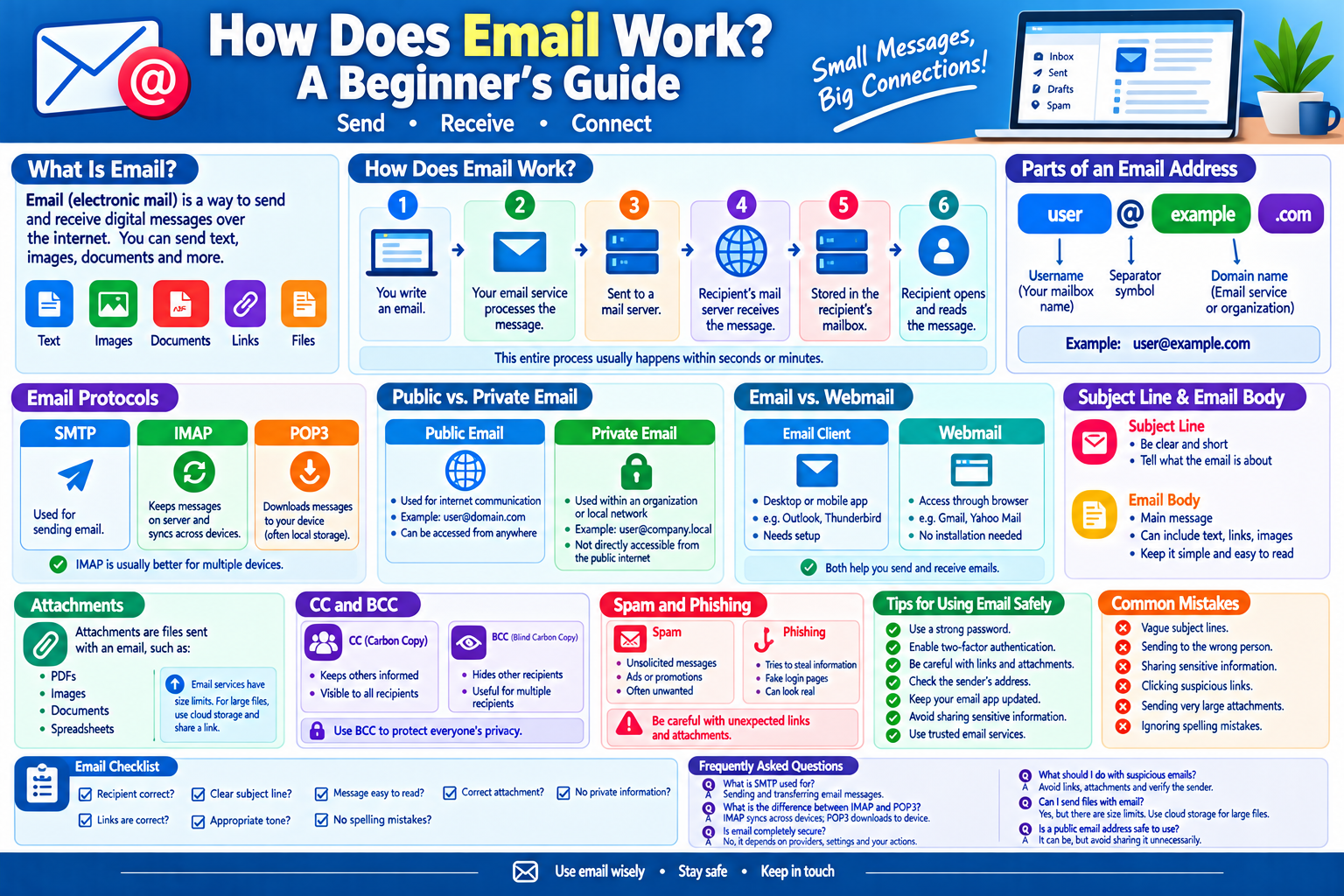
How Does Email Work? A Beginner’s Guide
Email is one of the most widely used communication tools on the internet. People use email every day to communicate with friends, businesses, schools, websites, customers, and organizations.
Although sending an email feels almost instant, several systems work together in the background to deliver a message from one mailbox to another.
In this beginner’s guide, we will explain how email works, what happens when you send a message, the different parts of an email address, common email protocols, and simple tips for using email effectively.
What Is Email?
Email, short for electronic mail, is a method of sending and receiving digital messages over computer networks and the internet.
An email can contain:
- Text
- Images
- Documents
- Links
- Other digital files
Unlike traditional physical mail, email can usually be delivered within seconds or minutes, depending on the networks and services involved.
What Does an Email Address Look Like?
An email address normally has three main parts.
For example:
It can be divided into:
user → username or mailbox name
@ → separator symbol
example.com → domain name
The username identifies the mailbox, while the domain identifies the email service or organization responsible for that address.
What Happens When You Send an Email?
When you press the Send button, your message does not simply travel directly from your device to the recipient’s device.
Several systems can be involved.
A simplified process looks like this:
- You write an email.
- You enter the recipient’s email address.
- Your email service processes the message.
- The message is sent to a mail server.
- The recipient’s mail server receives the message.
- The message is stored in the recipient’s mailbox.
- The recipient opens their email application or website.
- The message is displayed.
This entire process is normally automated.
What Is an Email Server?
An email server is a computer system that helps send, receive, store, and manage email messages.
Email services use specialized servers to handle large numbers of messages.
An email system may have different servers for different tasks, such as sending outgoing mail or receiving incoming mail.
These servers communicate with one another using established internet protocols.
What Is SMTP?
SMTP stands for Simple Mail Transfer Protocol.
SMTP is primarily used for sending email.
When you send a message, your email application or service can use SMTP to transfer the message to the appropriate mail server.
SMTP is an important part of the email delivery process.
What Is IMAP?
IMAP stands for Internet Message Access Protocol.
IMAP is commonly used for accessing email stored on a mail server.
One important benefit of IMAP is that messages can remain synchronized across multiple devices.
For example, you may access the same mailbox from:
- A smartphone
- A laptop
- A desktop computer
- A tablet
- A web browser
Actions such as reading or organizing messages can be synchronized with the mail server depending on the email service.
What Is POP3?
POP3 stands for Post Office Protocol version 3.
POP3 is another protocol used to retrieve email messages.
Unlike IMAP, traditional POP3 setups often download messages from the server to a device. The exact behavior depends on the email application’s configuration and server settings.
POP3 can be useful in certain situations, but IMAP is commonly preferred when users want mailbox synchronization across multiple devices.
IMAP vs. POP3
Both protocols can be used to access email, but they work differently.
IMAP
- Keeps messages primarily on the server.
- Supports synchronization between devices.
- Works well for users who access email from multiple devices.
POP3
- Commonly downloads messages to a device.
- Can be useful for local email storage.
- Provides fewer synchronization features than IMAP.
For most modern multi-device users, IMAP-style synchronization is generally more convenient.
What Is an Email Client?
An email client is an application or program that allows you to send, receive, and manage email.
Examples include:
- Web-based email interfaces
- Smartphone mail applications
- Desktop email applications
An email client connects to email services using appropriate protocols and account settings.
What Is Webmail?
Webmail allows users to access email through a web browser.
Instead of installing a dedicated desktop application, you can open an email service’s website and sign in to your account.
Webmail is convenient because it can usually be accessed from different computers and devices with an internet connection.
What Is the Subject Line?
The subject line gives the recipient a quick idea of what an email is about.
A good subject line should be:
- Clear
- Short
- Relevant
- Specific
For example:
Meeting Schedule for Monday
is more useful than:
Hello
A clear subject helps recipients understand the purpose of a message before opening it.
What Is the Email Body?
The email body contains the main message.
It can include:
- Text
- Links
- Images
- Formatting
- Other content supported by the email service
For professional communication, keeping the message organized and easy to read is usually helpful.
What Are Email Attachments?
An email attachment is a file sent along with an email message.
Attachments can include:
- PDF documents
- Images
- Word documents
- Spreadsheets
- Presentations
- Other files
Email services usually impose limits on attachment size.
If a file is too large, users may instead share it through a cloud-storage service and send a link.
What Is CC in Email?
CC stands for Carbon Copy.
When you place an address in the CC field, that person receives a copy of the email.
CC is commonly used when someone should be kept informed but is not the primary recipient.
What Is BCC in Email?
BCC stands for Blind Carbon Copy.
Recipients placed in the BCC field generally receive the email without other recipients seeing their addresses in the normal recipient list.
BCC can be useful when sending a message to multiple people and you do not want to expose everyone’s email address to one another.
What Is Spam Email?
Spam is unwanted or unsolicited email.
Spam messages can include:
- Advertising
- Unwanted promotions
- Scams
- Fake notifications
- Suspicious links
- Malicious attachments
Email providers use spam filters to automatically detect and separate many unwanted messages.
However, no filtering system is perfect, so users should remain careful.
What Is Phishing Email?
A phishing email is designed to trick a recipient into revealing information or taking an unsafe action.
A phishing message may pretend to come from:
- A bank
- An online service
- A delivery company
- A workplace
- A government organization
- A familiar contact
Warning signs can include urgent language, unexpected attachments, suspicious links, unusual requests, or a domain that does not match the claimed organization.
How to Use Email Safely
You can follow several simple habits to improve email security.
1. Use a Strong Password
Create a unique password for your email account and avoid reusing it across other services.
2. Enable Two-Factor Authentication
If your email provider supports two-factor authentication, enabling it can provide an additional layer of account protection.
3. Be Careful With Links
Do not automatically click links in unexpected messages.
Check where a link leads before opening it when possible.
4. Avoid Suspicious Attachments
Do not open unexpected attachments simply because they appear to come from someone you know.
5. Check the Sender
Look carefully at the sender’s address, especially when the message asks for money, passwords, or other sensitive information.
6. Keep Your Email Application Updated
Updates can include security improvements and bug fixes.
Why Email Addresses Should Be Protected
Your email address can become a target for spam, phishing, and unwanted messages.
Avoid publicly posting your primary email address everywhere if it is not necessary.
You can also consider using separate email addresses for different purposes, such as:
- Personal communication
- Online shopping
- Newsletters
- Business communication
This can make email management easier.
What Happens When an Email Cannot Be Delivered?
Sometimes an email cannot reach its intended recipient.
Possible reasons include:
- Incorrect email address
- Full mailbox
- Temporary server problem
- Message rejected by the recipient’s server
- Attachment too large
- Spam or security filtering
- Domain or DNS problems
In many cases, the sender receives a delivery failure or bounce message explaining the problem.
What Is an Email Signature?
An email signature is information automatically added to the end of outgoing messages.
A signature may contain:
- Name
- Job title
- Organization
- Website
- Contact information
For professional communication, a simple signature can make emails look more organized.
How to Write a Good Email
A well-written email should be easy to understand.
A simple structure is:
- Clear subject
- Appropriate greeting
- Main message
- Important details
- Clear request or conclusion
- Polite closing
- Signature when appropriate
Avoid unnecessarily long messages when a short explanation is enough.
Common Email Mistakes
Using a Vague Subject
A subject that does not explain the purpose of the message can make it harder to manage.
Sending to the Wrong Person
Always check the recipient before pressing Send.
Sharing Sensitive Information
Avoid sending passwords, financial information, or other sensitive data through email unless you understand the security requirements and have an appropriate secure method.
Replying to Suspicious Messages
If an email looks suspicious, avoid responding until you can verify its source.
Sending Very Large Attachments
Large files may fail to deliver or may be inconvenient for recipients.
Email Checklist
Before sending an important email, check:
- Is the recipient correct?
- Is the subject clear?
- Is the message easy to understand?
- Did you attach the correct file?
- Did you accidentally include private information?
- Are the links correct?
- Is the tone appropriate?
- Did you check for obvious spelling mistakes?
Frequently Asked Questions
1. How does email work?
Email works through a combination of email applications, mail servers, DNS, and communication protocols such as SMTP and IMAP. These systems work together to send, deliver, store, and access messages.
2. What is SMTP used for?
SMTP is mainly used to send and transfer email messages between email systems.
3. What is the difference between IMAP and POP3?
IMAP is designed for synchronized access to messages stored on a mail server, while POP3 traditionally downloads messages to a device.
4. What is an email attachment?
An attachment is a file included with an email message, such as a document, image, PDF, or spreadsheet.
5. Is email completely secure?
Email should not automatically be treated as completely private or secure. Security depends on the email providers, connection security, account protection, and how messages and attachments are handled.
6. What should I do with suspicious emails?
Avoid clicking suspicious links, opening unexpected attachments, or providing personal information. If possible, verify the message through an independent and trusted method.
Final Thoughts
Email may look simple from the user’s perspective, but several technologies work together behind the scenes to deliver messages.
SMTP helps send email, while systems such as IMAP can help users access and synchronize their mailboxes. Email servers, DNS, applications, and security systems all play important roles in the process.
By understanding these basic concepts and following simple security practices, beginners can use email more confidently and safely.