Experiencing a situation where your laptop connects to Wi-Fi but cannot open websites is a common point of frustration for many users. You see the signal bars fully lit and your operating system confirms a connection to the local network, yet every browser attempt results in a timeout or a “no internet” error page.
This disconnect usually stems from a breakdown in the communication path between your computer and the external web, rather than a total failure of your wireless hardware. By systematically checking your network configuration and local settings, you can often identify and resolve the hidden bottleneck preventing your digital access.
Check for Captive Portal Authentication
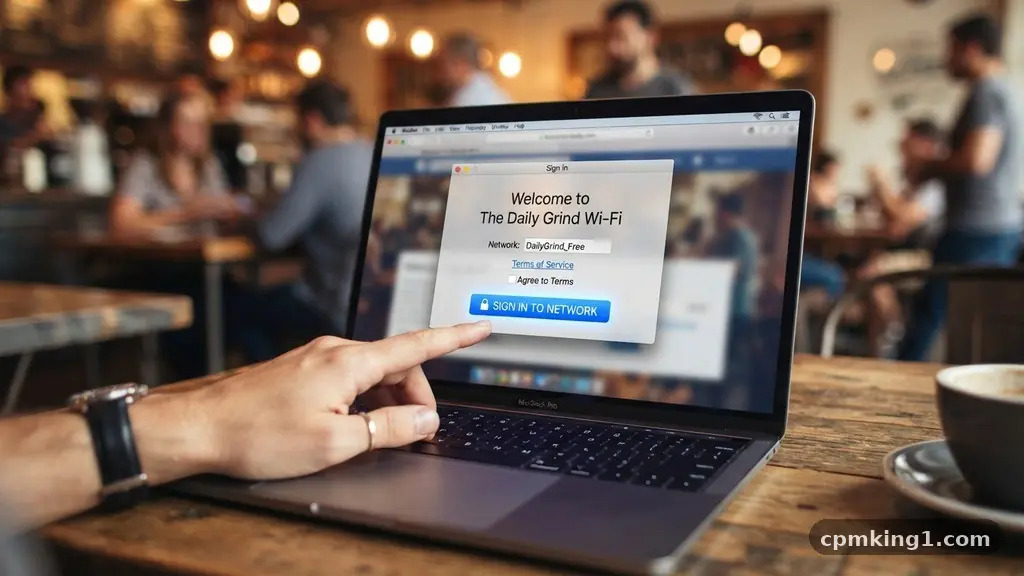
Many public networks require you to sign in before you are granted access to the broader internet. When your laptop connects to Wi-Fi but cannot open websites, it is often because you are sitting behind a captive portal that is silently blocking your traffic until you accept terms or log in.
This is extremely common in airports, coffee shops, and hotels. Your browser might not automatically redirect you to the login page, leaving you in a state of digital limbo where you are connected to the router but prohibited from reaching external sites.
To test for this, try navigating to a simple, non-HTTPS website like a basic news portal or a router configuration page. Sometimes, if the browser tries to force a secure connection, the redirect to the sign-in page will fail. If you see a login screen, perform the necessary steps to authenticate.
If you do not see a prompt, try manually entering the IP address of your default gateway into the browser address bar. This action often forces the router to serve the login page. A common mistake here is assuming the internet is down when you simply haven’t “checked in” with the provider’s gateway.
Flush DNS and Renew IP Configuration
Your computer relies on a Domain Name System (DNS) to translate human-readable URLs into the numerical addresses that computers understand. If your DNS cache is corrupted or outdated, your browser may look for a website at an address that no longer exists or is unreachable.
To fix this, you should follow these official troubleshooting steps to reset your network stack. Opening the command prompt and running a series of commands is the most effective way to clear the cobwebs from your networking software.
Start by typing “ipconfig /flushdns” to clear the local cache. Next, use “ipconfig /release” followed by “ipconfig /renew” to force your laptop to request a fresh set of instructions from the DHCP server on your router. This process clears out old IP address assignments that might be causing an IP address conflict with other devices on your local area network.
If your laptop is clinging to a stale configuration, it will never be able to route packets correctly to the wider web. This step is essential because it forces the TCP/IP stack to rebuild its connections from scratch, often clearing up silent errors that aren’t visible in the settings menu.
Investigate Proxy and Firewall Restrictions
Sometimes, software on your machine is actively interfering with your ability to connect. Proxy settings are a frequent culprit; if a proxy server is configured incorrectly or is currently offline, your traffic will be sent into a void.
Check your browser or system-wide network settings to ensure that “Automatically detect settings” is enabled and that no manual proxy servers are listed unless you explicitly use one for work or security purposes. If you see an address there that you don’t recognize, it is a sign that a browser extension or malicious software may have hijacked your traffic.
Firewall restrictions also play a role. If you have recently installed third-party security software, it might be blocking outgoing traffic from your browser while allowing the underlying wireless connection to remain active. Temporarily disabling your firewall or security suite can help you isolate whether the software is the source of the blockage.
If your internet starts working immediately after disabling the firewall, you know the culprit. You can then re-enable the security software and check its logs to whitelist your web browser, ensuring you stay protected while regaining your ability to browse the web.
Test Connectivity with the Ping Command
Using the ping command provides a raw look at your connection status that bypasses the browser entirely. If you want to know if the problem is with your DNS or your actual connection to the internet, open your command prompt and type “ping 8.8.8.8”.
This command sends a small packet of data to a public DNS server operated by Google. If you receive a reply, your connection to the internet is working perfectly, and the issue is almost certainly related to your DNS server settings or browser-level configurations.
If the ping fails, the problem is likely closer to home. You should then ping your router’s IP address, which is usually 192.168.1.1 or 192.168.0.1. If you get a response from your router but not from the external IP address, your connection to the local network is fine, but the router itself is failing to reach the internet.
This could indicate a service outage from your ISP or a need to restart your wireless access point. A common mistake is to ignore the results of this test, assuming the connection is broken when the hardware is actually doing its job, but failing to route traffic correctly.
Update or Reinstall Network Adapter Drivers
Your hardware needs to speak the same language as your operating system, and that is where network adapter drivers come in. If these files become corrupted or outdated after an OS update, your laptop might maintain a wireless link but fail to handle the data packets coming through that link.
Access your device manager and look for your network adapter under the network controllers section. If you see a yellow exclamation mark, the driver is likely the source of your woes.
Right-click the adapter and select the option to update the driver. If that doesn’t work, choosing to uninstall the device and then restarting your laptop is an effective “nuclear” option. Upon reboot, Windows or macOS will automatically detect the hardware and reinstall a fresh, clean version of the driver.
This clears out any conflicting settings that might have been lingering in the registry. Many users overlook this because the Wi-Fi icon still shows as “connected,” but a faulty driver can easily allow for a local handshake while blocking the actual transmission of web-based data.
Review Router Firmware and DHCP Settings
The device that manages your home network, the router, might be the root of the problem. If your router firmware is outdated, it may struggle with modern security protocols, leading to intermittent connectivity issues where you appear connected but cannot load pages.
Log into your router’s administrative dashboard to check for pending firmware updates. Many modern routers offer an “auto-update” feature, but a manual check is sometimes necessary if you haven’t logged in for a while.
Additionally, examine the DHCP settings within your router. If the DHCP range is too small, your laptop might be getting kicked off the network or assigned an address that is already in use by another device.
This creates a situation where your laptop thinks it has a valid IP address, but the network hardware is routing traffic elsewhere. Resetting the router to its factory defaults is a drastic step, but it is often the quickest way to clear out a misconfigured DHCP pool or a corrupted routing table that is preventing your laptop from reaching the outside world.
Clear Browser Cache and Disable Extensions
Sometimes the problem is not with your network at all, but with the browser itself. If your browser cache is bloated or corrupted, it may try to load outdated versions of sites or get stuck in a loop trying to verify security certificates.
Clearing your browser cache and cookies can resolve these persistent errors. It forces the browser to fetch a fresh copy of the website data from the server, bypassing any locally stored junk that might be causing a crash or a silent hang.
Browser extensions are another frequent source of interference. Ad-blockers, VPN plugins, and privacy scripts can occasionally break the way a page renders or communicates with the server. Try opening your browser in “Incognito” or “Private” mode.
If the website loads normally in private mode, one of your installed extensions is likely the cause. Disable them one by one until you identify the culprit. A common mistake is to assume the network is the issue when a simple conflict between a plugin and a website’s security protocol is actually the only thing standing in your way.
Frequently Asked Questions
Why does my Wi-Fi say connected but no internet access?
This usually happens when your laptop has successfully established a link to your router, but the router itself has lost its connection to your ISP. It can also be caused by incorrect DNS settings or a temporary glitch in your network adapter’s IP configuration.
Can a VPN cause my laptop to be connected but unable to browse?
Yes, if your VPN client is active but the server it is trying to reach is unresponsive or its security tunnel is broken, your traffic will be blocked. Turning off your VPN is often the first step in troubleshooting connectivity issues to see if the software is the source of the problem.
How do I know if my DNS settings are incorrect?
If you can successfully ping an IP address like 8.8.8.8 but cannot open a website like google.com, your DNS server is likely failing to translate the address. Manually setting your DNS to a public provider like 8.8.8.8 or 1.1.1.1 is a quick way to test if your ISP’s default DNS is the issue.
Should I restart my router if my laptop has no internet?
Restarting your router is one of the most effective troubleshooting steps because it clears the memory, resets the DHCP lease, and re-establishes the connection to your ISP. It is a standard “first-aid” measure for almost all home network problems that persist after a device restart.
Why does my connection work on my phone but not my laptop?
If other devices work fine, the problem is local to your laptop. Focus on your laptop’s specific network settings, such as your IP configuration, local firewall, or network drivers, rather than resetting your entire home network infrastructure.
Moving Forward with Your Connection
Resolving issues where your laptop connects to Wi-Fi but cannot open websites often comes down to clearing out stale configurations and identifying software conflicts. By following these steps, from flushing your DNS to checking for captive portals, you can systematically eliminate the most likely causes of your connectivity trouble. Most of the time, the fix is a simple software reset that gets your machine talking to the internet again.
If you have exhausted these steps and still find yourself offline, consider checking if your local service provider is experiencing an outage in your area. Taking a methodical approach will save you time and help you regain access to your favorite sites quickly and reliably. If you need more help, feel free to share the specific error message you see in your browser.