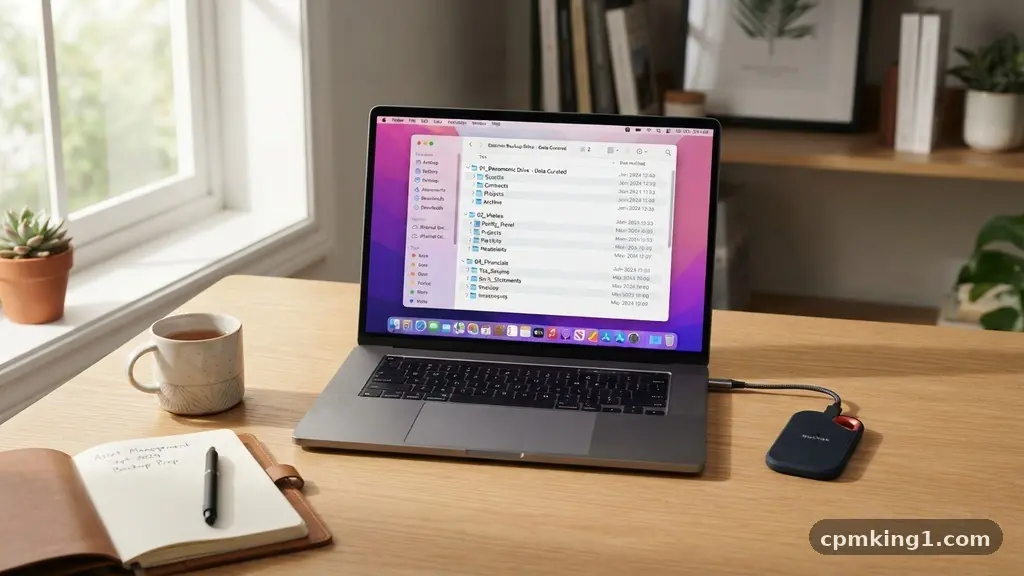
Creating a Reliable Backup Plan for Important Digital Documents ensures your memories, tax records, and creative projects remain safe from hardware failures or cyber threats. By implementing a layered approach, you protect your digital life against unexpected data loss.
You will gain peace of mind and technical confidence by organizing your files into a system that works automatically, keeping your most precious information accessible whenever you need it. This process is far simpler than most people assume, and you can start building your defense today with just a few basic tools and a clear, consistent routine.
Audit Your Digital Assets and Organize Your Files
Before you can back up your data, you must understand exactly what you have. Start by scanning your computer for folders containing personal documents, financial records, photos, and creative work. Many users store files across multiple locations, such as desktop folders, download directories, and various cloud folders.
Centralizing these assets into a structured folder hierarchy makes the entire process of creating a Reliable Backup Plan for Important Digital Documents significantly more manageable. Use descriptive naming conventions, like “2024_Tax_Returns” or “Family_Photos_Summer_2023,” to ensure you can find specific items quickly during a recovery scenario.
Once you have gathered your files, perform a quick cleanup. Delete duplicate files, temporary project folders, and outdated downloads that occupy unnecessary space. Reducing your total data footprint saves money on storage costs and speeds up the time it takes for your backups to complete.
Think of this as decluttering your digital office; you wouldn’t back up a pile of junk mail, so don’t include it in your digital archive. Once your files are organized, you can easily identify which folders require frequent updates and which remain static, which helps you decide how often specific data needs to be copied.
Implement the 3-2-1 Backup Rule
The gold standard for data safety is the 3-2-1 rule. This simple strategy dictates that you should have at least three copies of your data, stored on two different types of media, with one copy kept in an offsite location. Following this methodology is the most effective way to protect against total data loss, whether it comes from a hard drive crash, a house fire, or a theft.
When you rely on only one storage method, you are one hardware failure away from losing everything. By diversifying your storage, you create a safety net that accounts for almost any disaster.
Consider how this looks in practice. One copy is your primary working data on your computer. The second copy resides on local backups, such as external hard drives or a network-attached storage device at home.
The third copy should exist in the cloud or another secure, offsite location. This offsite component is crucial because it protects you from physical disasters that could damage both your computer and your local backup drive simultaneously. If your local office or home is compromised, your cloud-based data remains safe and accessible from anywhere in the world.
Utilize Reliable Local Storage Solutions
External hard drives remain a cornerstone of a solid backup plan because they offer fast, reliable access to large volumes of data without requiring an internet connection. When purchasing a drive, look for reputable brands and consider the storage capacity you need today, plus room for future growth.
Many users prefer SSDs (Solid State Drives) for their durability and speed, while traditional HDDs (Hard Disk Drives) provide a more cost-effective solution for long-term cold storage. Always ensure your drive is formatted correctly for your operating system to avoid compatibility issues down the road.
To maximize the longevity of your local drives, avoid leaving them plugged into your computer permanently. Constant connection can leave your local backups vulnerable to power surges or, in some cases, ransomware protection failure if the malware can reach attached drives. Instead, rotate your backups periodically.
Some power users maintain two separate drives and swap them, keeping one in a fireproof safe or a different room. This manual rotation adds a layer of physical security that automated systems cannot replicate. Always remember that hardware eventually fails, so replace your primary backup drives every three to five years to ensure they remain functional.
Leverage Cloud Storage for Redundancy
Cloud storage provides the critical offsite component of your backup strategy. Services like Backblaze, Google Drive, or iCloud allow you to transmit your files to secure data centers, ensuring your information stays safe even if your physical hardware disappears. When selecting a provider, prioritize those that offer robust cloud storage encryption.
This ensures that your files are scrambled before they leave your device, meaning even the service provider cannot view your private documents. This level of security is essential for sensitive records like medical files or legal documents.
One common mistake is treating a file-syncing service, like Dropbox, as a true backup. These services are designed for convenience and collaboration, meaning if you accidentally delete a file on your computer, it often deletes the copy in the cloud as well. True backup software acts differently; it creates snapshots of your data that persist even after the original file is modified or removed.
Look for dedicated solutions that provide versioning, which allows you to restore a document to a state it was in a week or a month ago. This is your best defense against accidental deletion or corrupted files that you might not notice immediately.
Automate Your Workflow for Consistency
The most reliable backup is the one that happens without you having to remember to do it. Manual backups are prone to human error; it is far too easy to go weeks or months without copying your files, leaving you vulnerable during the exact moment you need them most.
Automated backup software removes this burden by running in the background, continuously checking for changes and updating your copies as you work. Set your software to run daily, or at the very least, weekly, to ensure your data loss window remains as small as possible.
When setting up your automation, pay attention to the resource impact on your machine. Many modern programs allow you to schedule backups for times when you aren’t using your computer, such as overnight. This ensures your system stays responsive while the heavy lifting of data transfer occurs.
You should also configure your software to notify you if a backup fails. A silent failure is dangerous because you might falsely believe your data is safe when, in reality, your last backup occurred months ago. Regularly check your dashboard to confirm that the “last successful backup” date matches your expectations.
Explore Advanced Data Protection Techniques
For users with massive amounts of data or those who want the highest level of security, advanced techniques like RAID arrays and immutable snapshots offer superior protection. A RAID array uses multiple drives to ensure that if one fails, your data remains intact on the others.
While this is primarily for hardware reliability, it is often paired with automated backup software to create a truly resilient system. These setups are more complex to manage, but for professionals or households with significant digital archives, they provide a level of performance and security that standard external drives simply cannot match.
Another powerful tool is the use of immutable snapshots. These are “read-only” copies of your data that cannot be altered or deleted by any user or malware for a set period. This provides the ultimate ransomware protection.
If a malicious actor gains access to your network and attempts to encrypt your files, your immutable snapshot remains untouched, allowing you to restore your entire system to a clean state. While these technologies sound intimidating, many modern NAS (Network Attached Storage) devices come with user-friendly interfaces that make implementing these advanced features accessible to home users. You can find more information about securing your data through CISA’s Cyber Essentials to understand the broader context of digital security.
Verify Your Backups Through Periodic Testing
The final, and often most ignored, step is verifying that your backups actually work. A backup is only a dream until it has been successfully restored. Many people go through the effort of setting up a system but never test it, only to discover that their files are corrupted or the software is misconfigured when it is already too late.
Set a reminder in your calendar every six months to perform a “restore drill.” Pick a few random files from your backup, copy them back to your computer, and ensure they open correctly.
This verification process is the only way to be 100% certain that your plan is functional. During this drill, check for issues like missing file permissions, broken file paths, or incomplete folder structures. If you find problems, you have the opportunity to fix them before a real emergency occurs.
This is also a perfect time to review your storage needs. If you find that your backup drives are nearly full, use this moment to upgrade your hardware. Taking these proactive steps turns your backup plan from a passive insurance policy into an active, reliable component of your digital life.
Frequently Asked Questions
How often should I update my backups?
Ideally, your backups should be automated to run at least once every 24 hours. If you handle highly sensitive or rapidly changing work documents, you might consider real-time file synchronization, though this should always be paired with a versioned, non-syncing backup solution to prevent accidental data loss.
What is the difference between syncing and backing up?
Syncing, like using Google Drive or OneDrive, keeps files identical across multiple devices, meaning a change in one place reflects everywhere. A true backup creates a separate, often versioned, copy of your data that is protected from accidental deletions or ransomware, ensuring you can revert to a previous state if something goes wrong.
Are external hard drives enough for my data?
External drives are excellent for local, fast recovery, but they are not enough on their own. If your home experiences a fire, flood, or burglary, your external drives might be destroyed along with your computer. You must include an offsite or cloud-based component to ensure true data redundancy.
What is an immutable snapshot?
An immutable snapshot is a point-in-time copy of your data that cannot be changed, overwritten, or deleted for a specific duration. This is a powerful defense against ransomware, as even if a hacker gains control of your system, they cannot modify or delete the snapshot, allowing you to restore your files safely.
How do I know if my backup software is secure?
Look for software that supports end-to-end encryption, often called “zero-knowledge” encryption. This means the data is encrypted on your machine before being uploaded, and only you hold the decryption key. This prevents the service provider or anyone intercepting the data from being able to read your files.
Maintaining Long-Term Data Security
Building a secure digital archive is an ongoing commitment rather than a one-time project. By consistently following the steps outlined, you move from a state of vulnerability to a position of digital resilience.
Remember that the technology you use today will evolve, so remain flexible and willing to update your methods as better tools become available. Whether it is moving to larger drives or adopting new cloud services, staying proactive keeps your information safe.
The effort you put into creating a Reliable Backup Plan for Important Digital Documents pays off the moment you face a hardware failure or a lost device. You will find that the stress of potential data loss vanishes, replaced by the quiet confidence that your digital life is preserved.
Start by auditing your files today and setting up that first automated backup. Your future self will thank you for the foresight and care you took to protect the things that matter most.