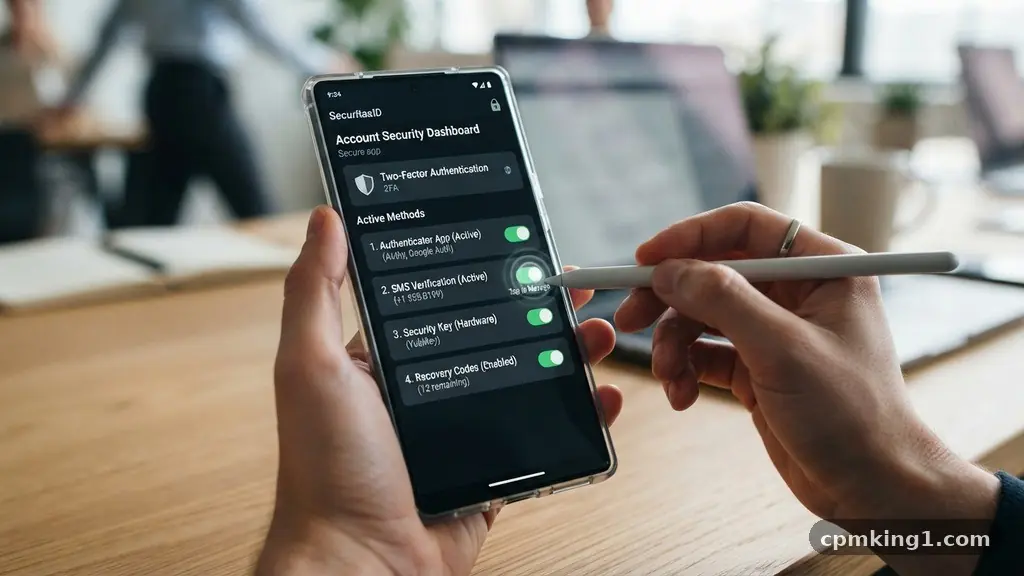
Protecting Your Online Accounts When Replacing Your Phone is a vital step that ensures your digital life remains secure during a transition. Many people focus entirely on the physical hardware, forgetting that the device acts as a primary key to their sensitive data. By taking proactive measures before you hand over your old device or power it down for the last time, you prevent unauthorized access and potential data breaches.
This process involves careful management of your credentials and security settings, ensuring you don’t lose access to essential services while keeping hackers at bay. You will gain peace of mind and prevent common headaches by following these systematic security steps before your next upgrade.
Reviewing Your Active Authentication Methods
Before you even unbox your new device, you must audit how you currently log into your most sensitive platforms. Many users rely on SMS-based two-factor authentication, which is inherently risky during a phone transition.
If you lose your phone number or the SIM card is deactivated before you set up your new device, you may find yourself locked out of your bank, email, or social media accounts. This is the perfect time to shift toward more secure alternatives like multi-factor authentication (MFA) that doesn’t rely solely on a phone number.
Common mistakes often include assuming that a simple cloud backup will transfer all your security tokens automatically. In reality, many apps require you to manually move your MFA configuration. If you rely on SMS codes, ensure your SIM card is ready to be swapped or that your mobile carrier has already transferred your number to the new device.
If you don’t do this, you might trigger a security lockout that requires weeks of manual identity verification with support teams. Always check your primary accounts to see if they offer hardware security keys or backup email addresses as secondary verification methods.
Transitioning Your Authenticator Apps
Authenticator apps are the gold standard for security, but they are also the most common point of failure when switching phones. Apps like Google Authenticator or Authy store your security codes locally on your device unless you have specifically enabled cloud synchronization. If you wipe your old phone before migrating these tokens, those accounts could become permanently inaccessible.
You must open your chosen authenticator app and look for a migration or export tool. This function usually generates a QR code that you can scan with your new device to import all your accounts instantly.
A frequent error is deleting the old app before confirming the new one works. Never clear the data on your old phone until you have verified that at least one or two of your most critical logins are functioning on the new hardware. If you use an app that doesn’t support cloud syncing, you are essentially responsible for manually re-registering each account.
This is tedious, but it is the safest way to ensure that no third party gains access to your tokens during the transfer. Always keep a physical list or a secure digital copy of your account recovery codes in a safe place during this transition.
Managing Password Managers and Vaults
Your password manager is likely the most important app on your phone, housing the keys to every other service you use. When you move to a new device, you must ensure that your vault is fully synchronized with the cloud or that you have a recent, encrypted backup.
Most modern managers handle this through a master password and sometimes a secondary device verification. Before you discard your old phone, log into your password manager on the new device and verify that your most recent entries are present.
Avoid the temptation to use simple, easily guessed passwords while you are in the middle of a device setup. If you find that your password manager isn’t syncing, check your internet connection and ensure your subscription status is active. A common pitfall is forgetting the master password because you have relied solely on biometric security like FaceID or fingerprint scanning for months.
Before you reset your old phone, test your master password on a computer or the new phone to confirm you haven’t lost the ability to decrypt your vault. If you cannot remember the master password, you will be locked out of your entire digital life once the old device is wiped.
Securing SIM Cards and Preventing Swapping
Your phone number is often the weakest link in your security chain. Attackers target phone numbers through SIM swapping, where they convince a carrier to move your number to a device they control. When you are replacing your phone, you are in a vulnerable window where your number might be inactive or in transition.
Contact your carrier to ensure that your account has a PIN or a “port freeze” enabled. This prevents unauthorized individuals from hijacking your number while you are busy setting up your new device.
When moving your physical SIM card to a new phone, do it in a secure, private location. Never leave your SIM card unattended in public spaces, as it contains enough information for a sophisticated attacker to begin the process of identity theft. If you are switching to an eSIM, ensure that the QR code or activation link provided by your carrier is only used on your verified device.
Once the new SIM is active, immediately test your cellular data and SMS reception to ensure the transfer was successful. If you encounter issues, resolve them through official carrier channels rather than third-party websites that promise to “unlock” or “fix” your connection.
Reviewing Session Management and Active Devices
Once you have successfully logged into your accounts on your new phone, you should perform a cleanup of your active sessions. Most major platforms, such as Google, Apple, and social media sites, provide a list of “active devices” in their security settings.
You might be surprised to see your old phone, an old tablet, or even a browser you used on a public computer years ago still logged in. This is the ideal moment to revoke access for any device you no longer possess or use.
By proactively closing these sessions, you effectively perform a “remote wipe” of your credentials from the old hardware. This is a critical step in protecting your online accounts when replacing your phone because it ensures that even if someone manages to turn on your old device, they cannot access your personal data. If you have any doubt about whether a session is safe, revoke it.
You can always log back in later if you realize you still need access. This practice minimizes your attack surface and keeps your digital footprint small and secure.
Handling Encrypted Backups and Cloud Storage
If you plan to use a full device backup to set up your new phone, you must verify the encryption status of that backup. Encrypted backups are essential because they ensure that even if a malicious actor gains access to your cloud storage, they cannot read your sensitive data.
When you initiate a backup through services like iCloud or Google Drive, check the settings to confirm that end-to-end encryption is enabled. If it isn’t, your data could be vulnerable while it sits in the cloud waiting for your new phone to download it.
A common mistake is assuming that “cloud storage security” is handled entirely by the provider. While they protect their servers, you are responsible for the strength of your account password and the integrity of your backup files. If you use a third-party service for backups, ensure that you have enabled multi-factor authentication on that account as well.
Without it, a single compromised password could give an attacker access to your entire phone’s contents, including your photos, messages, and app data. Treat your cloud backup as a high-value asset that requires the same level of protection as your physical device.
Utilizing Biometric Security and Hardware Keys
Biometric security is convenient, but it should never be your only line of defense. When setting up a new phone, you will likely be prompted to register your fingerprints or facial data. While this is great for daily use, it doesn’t replace the need for strong passwords or long-form recovery phrases.
Some users make the mistake of disabling traditional passcodes in favor of biometrics, which can leave them vulnerable if the biometric sensor fails or is bypassed. Always keep a strong, alphanumeric passcode as your primary barrier.
For the highest level of protection, consider using a physical hardware security key with your new device. These keys provide a physical layer of security that cannot be phished or intercepted remotely. Many modern phones support NFC-enabled keys, which allow you to tap the key against your phone to authorize a login.
This is far more secure than any SMS code or app-based token. While it requires an initial investment, it significantly reduces the risk of account takeover. By integrating hardware keys into your security routine, you provide yourself with a level of protection that is practically impossible for remote attackers to break.
Frequently Asked Questions
What should I do if I lose access to my authenticator app?
If you lose access to your authenticator app, you must rely on the backup codes you saved when you first enabled two-factor authentication. Most services provide a set of one-time use codes precisely for this scenario. If you didn’t save these, you will need to follow the account recovery process for each specific service, which often involves verifying your identity through email or customer support.
Is it safe to trade in my old phone without wiping it?
No, it is never safe to trade in a device without a complete factory reset. Even if you have signed out of your accounts, data recovery software can often retrieve deleted files from the internal storage. Always perform a full factory wipe that includes overwriting the data, and remove any physical SIM or SD cards before handing the device over to a third party.
How do I know if my cloud backup is encrypted?
You can verify encryption status in your device’s settings under the backup or account security section. For example, Apple’s Advanced Data Protection provides end-to-end encryption for iCloud backups, but it must be manually enabled by the user. If you are unsure, look for an option that says “End-to-End Encryption” or “Advanced Security” in your cloud provider’s privacy settings.
What if I forget my password manager’s master password?
If you forget your master password, you are effectively locked out of your vault unless you have a pre-configured recovery key or a trusted contact set up in your account. Most reputable password managers do not store your master password on their servers, meaning they cannot reset it for you. This is why it is critical to keep a physical, offline copy of your master password and any associated recovery keys in a secure location like a home safe.
Should I remove my device from my Google or Apple account before selling it?
Yes, removing your device from your account dashboard is a crucial step. This action prevents the device from being associated with your account for features like “Find My” or automatic cloud syncing. By deregistering the device, you also ensure that it cannot be used to verify your identity for future logins, effectively cutting all digital ties between you and the hardware.
Maintaining Digital Hygiene
Protecting your online accounts when replacing your phone is an ongoing process rather than a one-time task. By systematically reviewing your authentication methods, securing your password vaults, and cleaning up your active sessions, you ensure that your digital identity remains under your control. Remember to always prioritize end-to-end encryption for your backups and avoid relying on vulnerable SMS-based verification whenever possible.
These proactive habits build a strong foundation for your digital security, regardless of how often you upgrade your hardware. Taking these steps might take a little extra time during your transition, but the effort is well worth the peace of mind. Start by auditing your current security settings today, and share these best practices with friends or family members who might be preparing for their own device upgrades.