How to Improve Computer Performance: Simple Tips for Beginners
Improving computer performance is a task most users face eventually as their machines age or accumulate digital clutter over time. When your system starts lagging, it often feels like you need a new device, but simple software adjustments can frequently restore its original speed.
By managing your startup processes, clearing unnecessary files, and keeping your software current, you can significantly enhance your daily computing experience. This article provides practical, actionable steps to help you regain speed without needing deep technical expertise or expensive hardware upgrades.
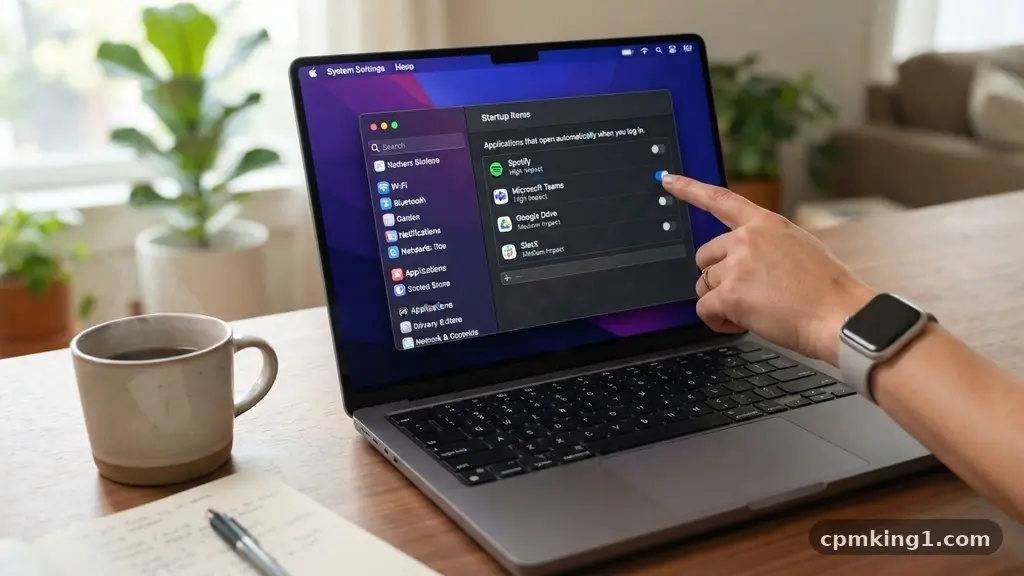
The most effective way to address a sluggish system is to identify what is running behind the scenes. Many programs automatically launch when you boot your computer, consuming valuable memory and processing power before you even open a single window.
You can easily manage these items through your system settings to ensure only the essentials are active. By disabling non-essential background tasks, you free up resources for the applications you actually intend to use, leading to an immediate boost in responsiveness.
Managing Startup Apps for Faster Boot Times
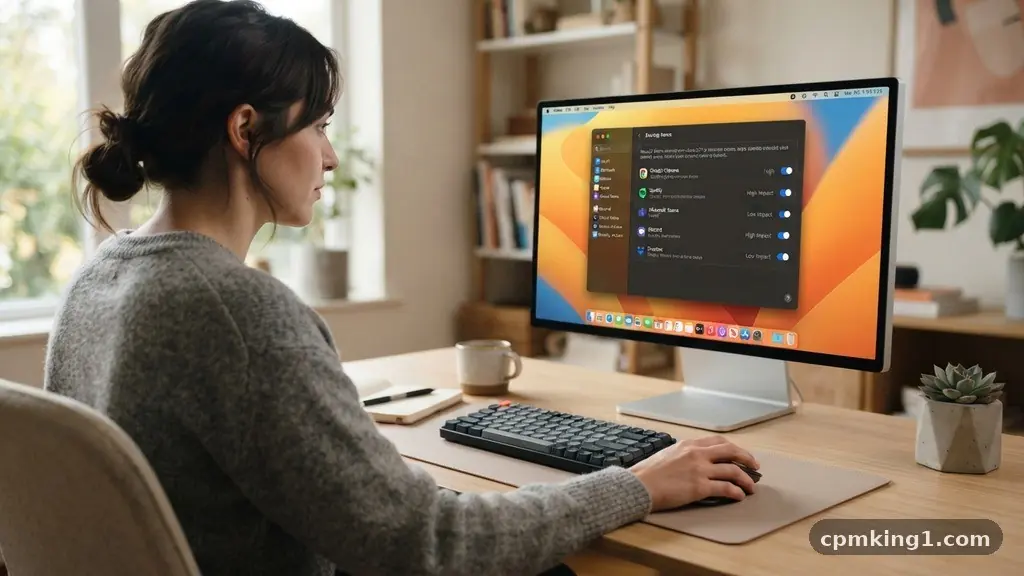
When you turn on your computer, numerous background processes initiate simultaneously. This is often the primary reason a machine feels slow immediately after it reaches the desktop.
You can take control of this by accessing the task management tools built into your operating system. For users on Windows, pressing Ctrl+Shift+Esc opens the Task Manager, where you can view a list of all items configured to run at startup.
Reviewing this list allows you to see exactly what is launching automatically. You might find programs you rarely use, such as update checkers for software you haven’t opened in months or peripheral control utilities you no longer need.
Simply right-clicking these items and selecting the option to disable them prevents them from hogging your system resources during the boot process. This change doesn’t delete the software; it only stops it from starting until you click the icon yourself.
Be cautious when disabling items if you are unsure of their purpose. If you see a driver or a core system process, it is best to leave it alone to ensure stability.
However, common culprits like browser updaters, chat application launch agents, and cloud storage sync tools are usually safe to manage. After you disable a few unnecessary apps, you will likely notice that your desktop becomes ready for use much faster than before.
Cleaning Up Storage to Prevent Bottlenecks
A full hard drive is a common cause of degraded system performance. When your storage space reaches capacity, the operating system struggles to find room for temporary files, virtual memory, and background processes.
Keeping at least 15% of your drive empty is a good general rule for maintaining smooth operations. You can start by reviewing your downloads folder, which often accumulates large installers and media files that have served their purpose.
Built-in tools like Disk Cleanup or the modern Storage Sense settings in Windows make this process straightforward. These utilities scan your drive for temporary files, cached web data, and items left in the recycle bin.
By selecting these categories and running the cleanup, you can often reclaim several gigabytes of space in just a few minutes. It is a low-effort way to remove the “digital dust” that slows down file access speeds.
Consider offloading large files like high-resolution videos or photo collections to an external drive or a cloud storage service. Large files do not necessarily slow down a computer on their own, but they eat into the available space required for optimal system performance.
Regularly auditing your personal files ensures that your primary drive remains lean and efficient. If you find your storage is consistently full, it may be time to delete duplicate files or uninstall applications you no longer use.
Keeping Software and Drivers Updated
System updates are essential for more than just security; they frequently include performance patches and efficiency improvements. Developers constantly tweak their code to resolve bugs that cause memory leaks or high CPU usage.
By ensuring your operating system and installed software are running the latest versions, you benefit from these under-the-hood optimizations. You can check for these updates by visiting the official Windows update support page to see what is currently available for your machine.
Drivers act as the translators between your hardware and your software. If you are experiencing issues with graphics, audio, or network speed, outdated drivers are often the culprit.
Most modern systems handle these updates automatically, but it is worth checking the manufacturer’s website if you have a specific piece of hardware that seems to be underperforming. Keeping your drivers current ensures that your hardware is communicating as efficiently as possible with your operating system.
It is also important to update your third-party applications. Browsers like Chrome or Firefox, for instance, frequently receive updates that reduce their memory footprint.
If you leave applications unupdated for long periods, they may become incompatible with newer system processes, leading to slow performance or crashes. A simple check once a month can prevent these issues from compounding over time.
Visual Effects and Performance Balance
Windows includes various animations, shadows, and transparency effects that make the interface look modern and polished. While these are visually appealing, they do consume processing power and graphics memory.
If you are using an older computer, these effects can make the system feel sluggish when you move windows or open menus. You can adjust these settings to prioritize performance over aesthetics if you find your system struggling.
To change these settings, search for “Adjust the appearance and performance of Windows” in your system search bar. You will be presented with a list of visual effects, such as “Animate controls and elements inside windows” or “Show shadows under mouse pointer.”
By selecting the option to “Adjust for best performance,” you automatically disable these resource-heavy animations. The interface may look slightly more utilitarian, but the speed increase is often immediate and noticeable.
This adjustment is particularly helpful for machines with integrated graphics or limited RAM. You do not have to turn everything off; you can choose custom settings to keep the features you like while disabling the ones that cause the most drag. For example, keeping “Smooth edges of screen fonts” enabled ensures that text remains readable, while disabling “Animate windows when minimizing and maximizing” can save a significant amount of system overhead.
Comparing Performance Factors
Understanding how different components impact your computer’s speed helps you diagnose issues more effectively. The following table illustrates common bottlenecks and how they typically affect your overall system responsiveness.
| Component | Impact on Speed | Simple Fix |
|---|---|---|
| RAM (Memory) | High | Close unused browser tabs and programs |
| Storage (SSD/HDD) | Medium | Delete large files and clear temporary data |
| CPU (Processor) | High | Disable unnecessary startup applications |
| Visual Effects | Low | Switch to “Best Performance” settings |
Each of these components works in concert to provide a fluid experience. When one component is under heavy load, it can cause the entire system to wait, which manifests as lag. By addressing these factors one by one, you create a more balanced environment for your computer to operate in.
Managing Browser Performance
For many users, the web browser is the most frequently used application. Because modern websites are complex, browsers often consume a large portion of your available memory.
If you have dozens of tabs open, your system will inevitably slow down as it tries to manage all that active data. Using a tab manager or simply closing tabs you are not currently using is a quick way to reclaim resources.
Browser extensions are another common cause of performance degradation. While useful, each extension runs a separate process in the background, adding to the load on your processor.
Periodically auditing your extensions and removing those you no longer use can lead to a snappier browsing experience. You can usually find a list of your extensions in the browser settings menu under a tab labeled “Extensions” or “Add-ons.”
Clearing your browser cache and cookies can also help if you notice that websites are loading slowly or acting erratically. Over time, the cache accumulates data that can become corrupted or outdated.
While the browser will need to re-download assets the next time you visit a site, this is generally a small price to pay for a smoother, more reliable connection. Most browsers offer a simple “Clear browsing data” option in the history or privacy settings.
Identifying Hardware Limitations
Sometimes, software optimizations are not enough to overcome the limitations of aging hardware. If your computer is more than a few years old, the mechanical components or the amount of memory might be the primary bottleneck.
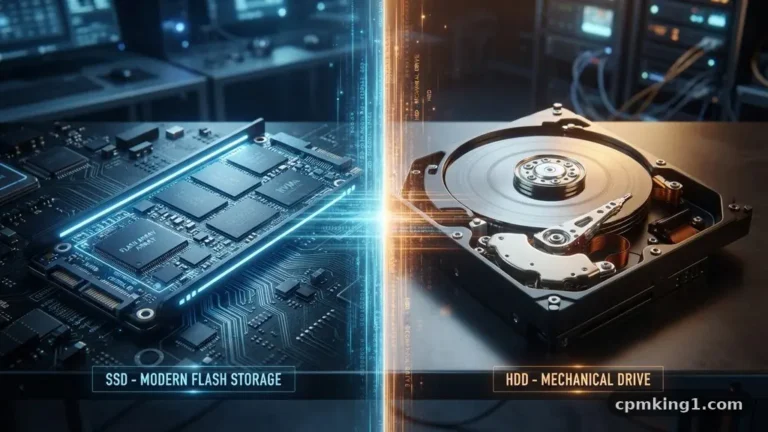
For example, replacing a mechanical hard drive with a Solid State Drive (SSD) is the single most impactful hardware change you can make. An SSD provides near-instant boot times and significantly faster file access compared to a traditional spinning hard drive.
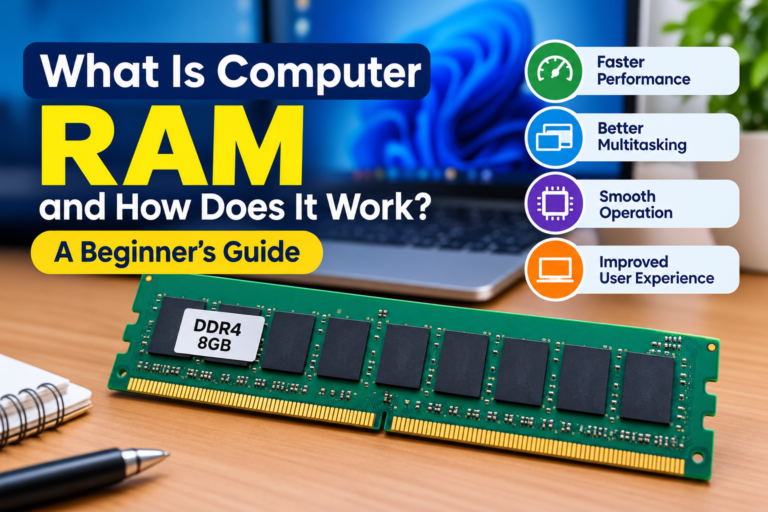
Adding more RAM is another effective way to improve performance if you frequently multitask. If your system consistently uses over 80% of its available memory, adding another stick of RAM will allow it to handle more programs simultaneously without swapping data to the slower hard drive.
This is often an affordable upgrade that can extend the life of a computer by several years. Before purchasing parts, ensure you verify compatibility with your specific model.
If you are unsure whether your hardware is the problem, use the Task Manager to monitor performance in real-time. Look at the “Performance” tab while you are performing your normal daily tasks.
If you see your CPU or Memory usage sitting at or near 100% consistently, you have identified a clear hardware limitation. In such cases, no amount of software cleaning will fully solve the issue, and an upgrade may be the only long-term solution.
Frequently Asked Questions
How do I know if a process is safe to disable?
If you are unsure about a specific process in the Task Manager, right-click it and select “Search online.” This will open your browser with the name of the process, allowing you to see if it is a common system file or a third-party application. Generally, if the process is associated with a program you recognize, it is safe to disable at startup.
Does restarting my computer really help?
Yes, restarting is one of the most effective ways to clear out temporary memory leaks and frozen background processes. When you leave your computer on for days at a time, small errors in the way programs manage memory can accumulate. A fresh reboot resets the system state and clears the RAM, giving you a clean slate.
Why does my computer slow down after installing new software?
New software often installs background services that start automatically or run tasks in the background, such as update checkers or indexing services. If you notice a sudden drop in performance after installing a new program, check your startup list to see if that application added itself to the boot sequence. Uninstalling programs you don’t use is also a good habit.
Are “PC Booster” apps worth using?
In most cases, you should avoid third-party “PC Booster” or “Registry Cleaner” software. These programs often make unnecessary changes to your system that can cause stability issues or introduce bloatware. The built-in tools provided by Windows are safer, free, and designed specifically for your system’s architecture.
How often should I clean up my files?
A monthly maintenance routine is usually sufficient for most users. Spend ten minutes once a month to empty your recycle bin, clear your browser cache, and review your downloads folder. This prevents clutter from building up and keeps your storage organized, which helps maintain consistent performance over time.
Improving computer performance is an ongoing process of maintenance rather than a one-time fix. By consistently managing which programs start automatically, keeping your storage clear of unnecessary files, and ensuring your system software remains current, you can keep your machine running smoothly for years. It is empowering to know that many of the common issues causing frustration are within your control to resolve.
Small, regular habits like closing unused tabs and checking for updates are often all it takes to keep your system responsive. If you find that these steps do not provide the boost you need, consider the hardware upgrades mentioned to give your computer a second life. Take a moment today to check your startup settings and clear out some digital clutter to experience the difference yourself.