SSD vs HDD: What Is the Difference and Which One Do You Need?
Choosing the right storage for your computer often comes down to the ongoing debate of SSD vs HDD: what is the difference and which one do you need While both technologies store your files, applications, and operating system, they function in fundamentally different ways that significantly impact your daily computing experience. Whether you are building a custom gaming rig, upgrading an aging laptop, or setting up a home media server, understanding these internal components is vital. This article breaks down the technical distinctions, performance trade-offs, and cost factors to help you make an informed decision for your specific storage requirements.
The Core Functional Differences
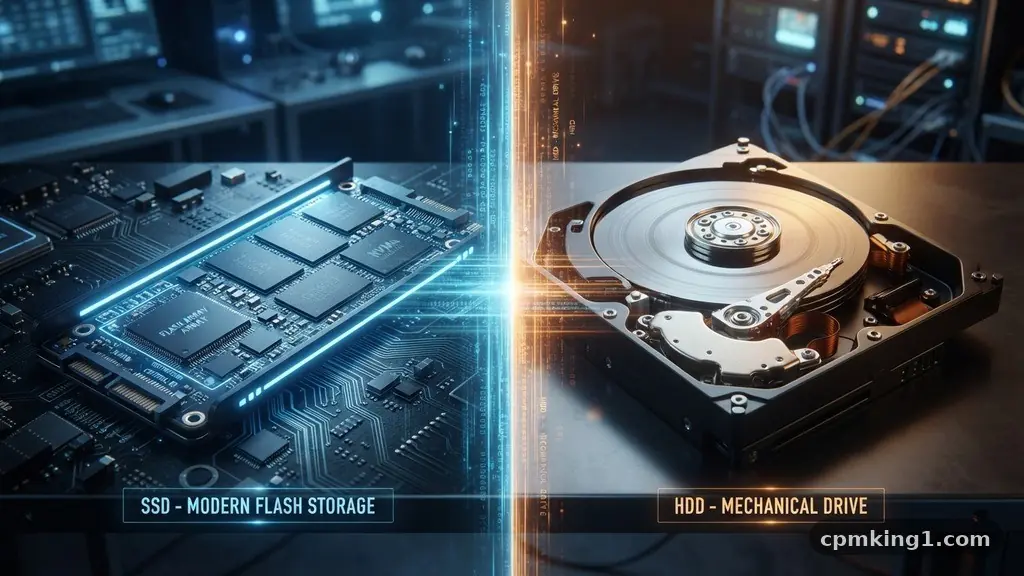
At the most basic level, a hard disk drive, or HDD, is a mechanical storage device. It relies on spinning magnetic platters and a physical read/write head that moves across the disk to access your data.
Think of it like a vintage record player where a needle tracks across a vinyl disc to play music. Because of these moving parts, HDDs are physically limited by how fast the platters can spin, typically measured in revolutions per minute, or RPM.
A solid-state drive, or SSD, takes a completely different approach by eliminating all moving parts. Instead, it uses NAND flash memory, which is the same type of technology found in USB thumb drives, but significantly faster and more reliable.
When you request a file, the drive accesses it instantly through electrical circuits. There is no physical head to move and no platter to spin up, which allows for near-instant access times.
This fundamental design difference is why SSDs are inherently more durable when subjected to physical movement. If you drop a laptop equipped with an HDD while it is running, the read/write head can crash into the platter, leading to catastrophic data loss.
Because SSDs have no moving parts, they are much more resistant to the accidental bumps and vibrations that occur during travel. This makes them the superior choice for portable devices like ultrabooks and tablets.
Speed and System Responsiveness
The most noticeable impact of choosing an SSD over an HDD is the sheer speed of your system. When you power on your computer, the operating system needs to load thousands of small files before you see your desktop. Because an SSD can access data from multiple locations on its memory chips simultaneously, your boot times will often drop from a minute or more down to just a few seconds.
Launching applications also feels significantly more responsive on a solid-state drive. When you click on a web browser or a heavy application like Photoshop, the drive initiates the read/write process immediately.
On a traditional hard drive, the system must wait for the mechanical arm to reach the correct sector on the spinning platter. This latency, often referred to as “seek time,” is the primary reason older computers feel sluggish when opening programs.
For gaming, the performance gap is just as pronounced. Modern games consist of massive asset files that need to be loaded into your system’s memory.
With an HDD, you might experience long loading screens or “pop-in,” where textures appear slowly as you move through the game world. An SSD ensures these assets are pulled from the drive and fed into the graphics card as quickly as the hardware allows.
Storage Capacity and Cost Factors
When comparing the price per gigabyte, HDDs remain the undisputed kings of value. Because the technology is older and the manufacturing processes are highly refined, you can buy massive amounts of space for a very low price.
This makes traditional hard drives the preferred option for long-term cold storage. If you have a large library of high-resolution photos, 4K videos, or backups that you don’t need to access every day, an HDD is a budget-friendly solution.
SSDs have become significantly more affordable over the last decade, but they still command a premium for high-capacity models. While you might find a 1TB HDD for a low price on sites like Amazon, a 1TB SSD will typically cost more.
This price gap widens as you move into multi-terabyte storage tiers. For many users, the sweet spot is a hybrid approach, using a smaller, fast SSD for the operating system and a larger, cheaper HDD for bulk file storage.
The following table provides a quick look at how these two technologies generally compare across key metrics:
| Feature | HDD (Hard Disk Drive) | SSD (Solid-State Drive) |
|---|---|---|
| Data Access Speed | Slow (Mechanical latency) | Extremely Fast (Flash memory) |
| Durability | Sensitive to physical shock | Highly resistant to impact |
| Cost per GB | Very Low | Moderate to High |
| Noise Levels | Audible spinning/clicking | Silent |
Lifespan and Data Integrity
A common misconception is that SSDs have a short lifespan because of their “write cycle” limits. While it is true that flash memory cells eventually wear out after being written to repeatedly, modern controllers use “wear leveling” to spread data across the entire drive.
For the average user, an SSD will likely outlive the computer it is installed in. You would need to write an enormous amount of data every single day to exhaust the drive’s endurance within a standard decade of use.
Hard drives face a different set of challenges regarding longevity. Because they are mechanical, they are susceptible to wear and tear caused by friction, heat, and motor failure.
Over time, the magnetic surface of the platters can degrade, leading to bad sectors. While HDDs can be great for static storage, their mechanical nature means they are statistically more likely to fail as they age compared to a high-quality solid-state drive.
Data recovery is also worth noting if you experience a failure. Recovering data from a corrupted HDD is often possible because the data is stored magnetically on a platter.
If an SSD controller fails or the NAND flash chips degrade, recovering data is often much more difficult, and sometimes impossible. This is why having a robust backup strategy is essential regardless of which drive technology you choose.
Choosing the Right Drive for Your Use Case
Determining which drive you need depends entirely on how you use your computer. If you are a student or an office worker, the speed of an SSD will make your daily tasks feel much more efficient.
There is no reason to settle for the slow boot times of a mechanical drive in a modern machine. Replacing an old HDD with an inexpensive SSD is often the single most effective upgrade you can perform on an aging laptop.
Gamers and creative professionals should prioritize SSDs to handle large file transfers and high-speed asset loading. Video editors, in particular, benefit from the high read/write speeds of NVMe SSDs, which allow for smooth scrubbing through 4K or 8K timelines. The time saved waiting for files to save or load adds up to hours of increased productivity over the course of a year.
If you are building a server or a system intended for massive data archiving, the HDD remains relevant. You might choose to store your operating system on a fast 500GB SSD to ensure the system is snappy, then pair it with an 8TB or 16TB HDD for your media library. This setup provides the best of both worlds: the performance of modern flash memory and the high-capacity, low-cost storage of magnetic platters.
Common Considerations for Upgraders
If you are planning to swap your current drive, there are a few technical hurdles to keep in mind. First, check your motherboard or laptop specs to see which connection types are supported.
Older systems use SATA connections, which are compatible with both traditional hard drives and 2.5-inch SSDs. Newer computers often support M.2 slots, which allow for compact, high-speed NVMe drives that plug directly into the motherboard.
Migration is another factor. Moving your files from an old drive to a new one is usually straightforward with cloning software, but you should always back up your data to an external source first.
Cloning creates an exact copy of your current drive, including your operating system, settings, and programs. This allows you to swap the drive without the hassle of reinstalling Windows or macOS from scratch.
Consider the physical form factor as well. Many desktop cases have dedicated bays for 3.5-inch hard drives, while smaller SSDs may need a mounting bracket to fit securely.
Laptops are even more restrictive, often requiring a specific size or connector type. Always verify your hardware compatibility before purchasing a new drive to avoid the frustration of a part that doesn’t fit your chassis.
Frequently Asked Questions
Is 256GB HDD the same as 256GB SSD?
While both provide the same amount of storage capacity, they are not the same in performance. An SSD will be significantly faster at loading your operating system and applications than an HDD of the same capacity.
What is the biggest downside of SSDs?
The primary downside is the cost per gigabyte, especially at higher capacities. While prices have dropped, you will still pay more for a 4TB SSD than you would for a 4TB HDD, which can be a limiting factor for users with massive data storage needs.
Can I use both an SSD and an HDD in the same computer?
Yes, most desktop computers and many larger laptops allow for multiple drives. It is a very common practice to install your operating system and frequently used software on a fast SSD, while using a high-capacity HDD for storing photos, movies, and other large files.
Do SSDs really make a computer faster?
They absolutely do. By reducing the time it takes for the system to find and read data, an SSD eliminates the “bottleneck” that often makes older computers feel slow. You will notice the difference immediately in how fast your computer boots and how quickly programs open.
How do I know which drive type I currently have?
On Windows, you can open the Task Manager, go to the “Performance” tab, and look at the disk section. It will typically list whether your drive is an SSD or an HDD. On macOS, you can click the Apple menu, select “About This Mac,” and view the storage information.
Conclusion
Selecting between an SSD and an HDD is no longer about choosing the “better” technology, but about choosing the right tool for your specific goals. For the vast majority of users, an SSD is the essential upgrade that turns a sluggish machine into a responsive, modern workstation. The performance benefits alone justify the investment, providing a smoother experience every time you press the power button.
While hard drives still hold a place for bulk storage and archival needs, they are best relegated to secondary roles in a modern setup. By understanding the differences in speed, reliability, and cost, you can build a system that balances performance with capacity.
Whether you decide to go all-in on solid-state or use a hybrid approach, your computer will benefit from a more thoughtful storage strategy. If you have questions about your specific hardware, check your manufacturer’s support page to see which upgrade paths are open to you.