Dealing with Windows apps stop responding and how to troubleshoot them safely is a common frustration for every computer user. When a program suddenly freezes or refuses to close, it interrupts your workflow and can leave your system feeling sluggish. Fortunately, you don’t need to be a technical expert to resolve these issues.
By understanding why software hangs and learning the correct steps to regain control, you can restore your productivity without risking data loss. This article provides a clear path for identifying the root cause of these interruptions and safely restoring your system to its normal, functional state.
Identifying the Immediate Cause with Task Manager
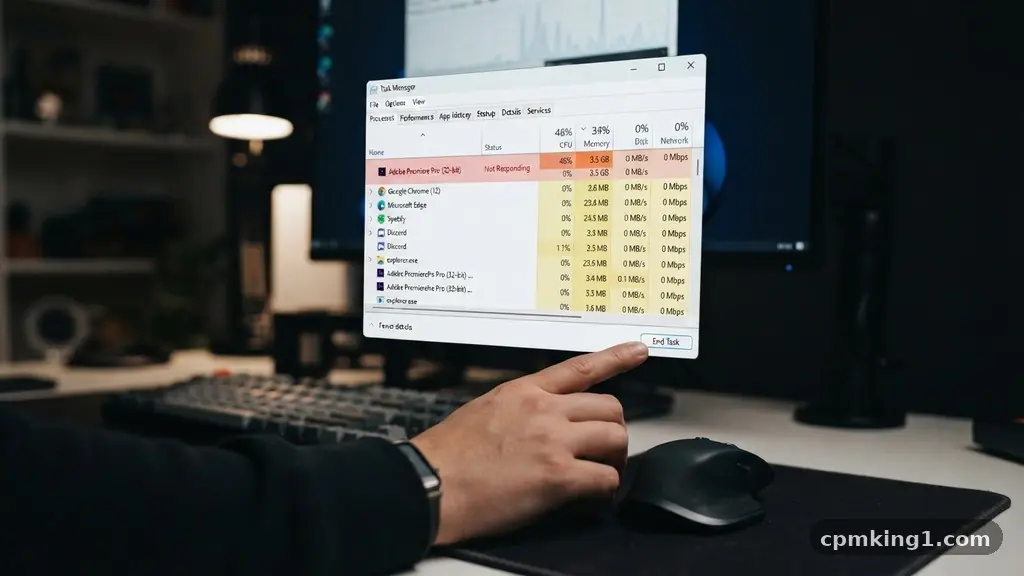
The most common starting point when an application hangs is the Windows Task Manager. This built-in utility provides a real-time window into what your processor and memory are doing at any given second.
When an app becomes unresponsive, it often means the software has entered a loop or is waiting for a system resource that isn’t arriving. By pressing Ctrl + Shift + Esc, you bring up the Task Manager immediately, bypassing the need for the keyboard to communicate through a frozen application layer.
Inside the Processes tab, you should look for the status column. If an app is labeled as “Not Responding,” it typically indicates that the program’s main thread is no longer processing input messages from the operating system. Before you rush to kill the process, check the CPU and RAM usage columns.
Sometimes, an application isn’t actually dead; it is simply performing a massive calculation or loading a large file that consumes all available system resources. If the CPU usage for that app is zero, it is definitively hung. If the numbers are fluctuating, the app is likely just busy.
A common mistake is clicking the “End Task” button repeatedly or frantically clicking the window itself. This only adds more “wait” events to the application’s queue, which can make the crash feel worse or lead to a “Program Not Responding” dialog box that further complicates things. Instead, select the process once and click “End Task” only after confirming it is truly stalled.
If you are dealing with a complex suite, such as a browser with many tabs, you might see a dropdown arrow next to the main process. You can expand this to identify exactly which sub-process or tab is causing the trouble, allowing you to close only the problematic part rather than the entire window.
Analyzing System Logs with Windows Event Viewer
When an application hangs repeatedly, the solution often lies in the logs that Windows keeps in the background. The Windows Event Viewer is an underutilized tool that records virtually every significant event on your machine, including software failures.
To find information about a specific crash, navigate to Windows Logs and then select Application. You are specifically hunting for entries categorized as “Error” that coincide with the time your program stopped working.
If you are looking for a specific crash event, you can filter the current log for Event ID 1002. This specific ID is the standard code for an application hang. When you click on the details of that error, you will often find information about the path of the executable and the nature of the hang.
This is where you might spot a DLL conflict, which occurs when two pieces of software fight over the same system library file. By identifying the specific module that triggered the error, you can often narrow down which software or driver update is responsible for the instability.
Avoid the temptation to clear your logs in an attempt to “fix” the system. These logs are your historical record; without them, you are guessing at what went wrong. If you see a pattern where a specific driver is mentioned in the Event ID 1002 report, that is a clear signal that your hardware drivers need an update.
You can visit the Microsoft Support portal to learn more about interpreting these error codes and managing system stability. Relying on these logs turns troubleshooting from a guessing game into a logical investigation.
Managing Resource Spikes and CPU Usage
Sometimes, an application stops responding because your computer is simply overwhelmed. CPU spikes are a frequent culprit, especially when multiple heavy applications compete for the same clock cycles.
When your processor hits 100% capacity, the Windows interface itself can become unresponsive, leading you to believe that a single app has crashed when the entire system is actually just struggling to keep up. This is particularly common on older hardware or machines with limited memory.
To determine if resource exhaustion is the issue, keep your Task Manager open on the Performance tab while you work. If you notice your RAM usage constantly hovering near the maximum, the system will start using your hard drive as “virtual memory,” which is significantly slower.
This transition often causes the mouse to stutter and applications to freeze for several seconds at a time. If you see this pattern, your best approach is to identify the background processes that are consuming the most memory and terminate them if they aren’t essential.
A common mistake is ignoring the “Startup” tab in Task Manager. Many users have dozens of apps that launch automatically when the computer turns on, running silently in the background and consuming resources before you even open your first document.
Disable any startup items that you don’t use daily. By cleaning up your boot process, you free up the necessary overhead for your active applications to run smoothly, preventing the resource starvation that so often leads to unresponsive software.
Addressing DLL Conflicts and Corrupt System Files
Software doesn’t live in a vacuum; it relies on hundreds of shared files known as Dynamic Link Libraries, or DLLs. If one of these files becomes corrupted or is replaced by a newer version that isn’t backward-compatible, an application can hang instantly upon launch or during a specific function.
The most efficient way to repair these core Windows files is by using the System File Checker. This command-line tool scans your system files and replaces any damaged versions with fresh copies from the local cache.
To use this tool, open the Command Prompt as an administrator and type “sfc /scannow” without the quotes. This process can take several minutes, and it is crucial that you do not close the window while it is running.
The tool will provide a summary of what it found and whether it was able to repair the files. If the tool reports that it found corrupt files but could not fix them, it usually indicates a deeper issue with the disk or the Windows image itself, which may require more advanced recovery steps.
Don’t panic if the scan finds errors. It is actually a good sign that the tool has identified the problem. A common mistake is to ignore the results of this scan and move on to uninstalling and reinstalling programs.
If the underlying system files are the issue, reinstalling the app won’t help because the corruption remains in the shared library. Always run the system file checker first, as it is the most reliable way to rule out core operating system issues before blaming the third-party software.
Performing a Clean Boot for Deep Troubleshooting
If an application hangs intermittently and you cannot find a clear reason, you might be dealing with a software conflict. A clean boot is the gold standard for isolating these issues.
By starting Windows with only the bare minimum of drivers and startup programs, you can see if the application works correctly in a “clean” environment. If the app runs perfectly during a clean boot, you know for certain that another piece of software on your computer is interfering with it.
To perform a clean boot, open the System Configuration tool by typing “msconfig” into the search bar. Under the Services tab, make sure to check the box that says “Hide all Microsoft services,” then click “Disable all.” This step is critical because disabling Microsoft services can prevent your computer from booting correctly.
Next, go to the Startup tab and disable everything before restarting your computer. If the application now works, you can slowly re-enable services and startup items one by one to identify the specific culprit.
The biggest mistake here is rushing the process. If you re-enable everything at once, you won’t learn anything about the cause. Take your time to test the app after every few changes.
This systematic approach is the only way to find out if, for example, your antivirus or a third-party cloud synchronization tool is locking the files that your app needs to function. It is a slow process, but it is the most effective way to eliminate complex software conflicts.
Updating Drivers and Windows Components
Hardware drivers are the bridge between your apps and the physical components of your PC. When these drivers are outdated, they can misinterpret instructions from your software, leading to a crash or a hard freeze. This is especially true for graphics drivers, which are pushed to their limits by modern browsers and video editing software.
Always ensure that your GPU, chipset, and network drivers are current. You can typically find these updates through the manufacturer’s website rather than relying solely on generic Windows updates.
While manual updates are effective, you should also keep Windows Update active. Microsoft frequently releases patches that address known bugs in the operating system’s handling of specific software processes.
If you have deferred updates for a long period, your system may be missing critical security patches or stability improvements that prevent common hang scenarios. It is tempting to skip updates to avoid the reboot, but consistent maintenance is the best defense against long-term system degradation.
Avoid third-party “driver updater” software that promises to scan and fix everything. These tools are often bloated with adware and can sometimes install incorrect or generic drivers that cause more instability than they solve. Stick to the official support pages for your hardware components.
If you have a laptop, the manufacturer’s support site is the best place to find integrated drivers that are tested for your specific model. Taking control of your driver environment is a proactive step that significantly reduces the frequency of application hangs.
Refining Your Approach to Unresponsive Software
When you find your Windows apps stop responding and how to troubleshoot them safely, you gain a sense of control over your digital workspace. The key is to remain patient and methodical.
Instead of forcing a hard shutdown of the PC—which can cause data corruption—use the tools provided by Windows to surgically remove the problem. Always save your work frequently in any application that is prone to hanging, and consider setting up auto-save features if the software supports them.
Remember that an application hang is rarely a permanent death sentence for your computer. Most of the time, it is a simple matter of resource management, a minor file conflict, or a driver that needs a refresh.
By using the Task Manager to monitor your system, keeping an eye on the Event Viewer for error codes, and maintaining your system files, you can handle almost any technical hiccup that comes your way. Troubleshooting is a skill that improves with practice, and each time you solve a hang, you become better equipped to maintain a stable and reliable computing environment.
Frequently Asked Questions
Why does an app become unresponsive immediately after I open it?
This usually happens because the application is trying to load a corrupt configuration file or is waiting for a network connection that is timing out. Check your internet connection or try renaming the application’s configuration folder to force it to create a fresh, default set of settings upon the next launch.
Is it safe to force close a program that says not responding?
Yes, it is generally safe to use Task Manager to end a task. While you might lose unsaved changes in that specific document, ending a process is a standard procedure and will not damage your operating system. It is much safer than pulling the power plug or holding the physical power button on your computer.
Can a virus cause my apps to stop responding?
While it is possible for malware to consume system resources or interfere with software, it is far more common for legitimate apps to hang due to poor coding or resource conflicts. If your system is suddenly slow across all apps, run a scan with Windows Security, but don’t assume a virus is the cause of every single crash.
What should I do if the system file checker doesn’t fix my issue?
If the tool reports that it cannot fix the files, your next best option is to use the Windows Recovery Environment to perform a “Startup Repair” or to use the “Reset this PC” option. Always back up your personal files to an external drive or cloud storage before performing any major system reset or recovery operation.
How do I know if my hardware is failing?
Frequent application hangs, especially when accompanied by blue screens or unexpected restarts, can indicate failing RAM or a dying hard drive. If you have tried all software-based troubleshooting steps and the problems persist, consider running a hardware diagnostic test provided by your computer manufacturer to check the health of your physical components.
Conclusion
Managing system stability is a proactive process that relies on patience and the right tools. When you understand why Windows apps stop responding and how to troubleshoot them safely, you turn a frustrating interruption into a manageable task. By focusing on resource monitoring, system file integrity, and driver updates, you can keep your computer running smoothly for years to come.
Do not hesitate to use the built-in utilities like Task Manager or the System File Checker, as they were designed specifically to help you maintain control over your software environment. If you encounter persistent issues, always document the error codes you find, as they provide the best roadmap for a permanent resolution. Take charge of your system today and enjoy a more reliable experience.