Checking Whether an Old App Still Receives Security Updates is a vital habit for maintaining your digital safety. Many users assume that because an application still opens and functions on their device, it remains safe to use. Unfortunately, software often reaches a point where developers stop patching vulnerabilities, leaving your personal data exposed to modern threats.
By learning how to identify if a program is truly abandoned or still actively supported, you protect your identity and your hardware from unnecessary risks. This process involves a few simple investigative steps that anyone can follow to ensure their digital environment stays secure and reliable.
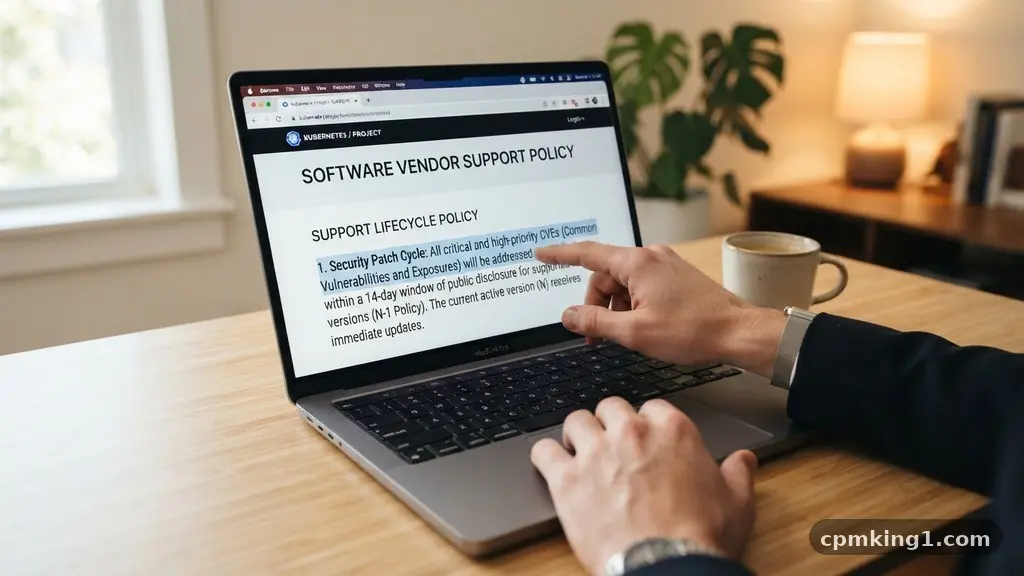
Examine the Official Vendor Support Policy
The most reliable way to determine if a piece of software is still being maintained is to Consulting Official Vendor Documentation. Every reputable software company publishes a support lifecycle or a vendor support policy on their website.
This document outlines exactly how long they intend to provide security patches and feature updates for a specific version. If you cannot find a clear statement regarding the end-of-life (EOL) date, it is often a sign that the product has been moved to a “legacy” status where active maintenance is no longer a priority.
When you look at these pages, pay close attention to the dates listed for various software versions. Many companies provide a matrix that shows which versions are currently supported and which have been deprecated. If your current version is listed as EOL, it means you will not receive any further security advisories, even if a critical flaw is discovered tomorrow.
A common mistake here is assuming that because a newer version exists, the older one is still being “patched for security” despite being obsolete. Usually, vendors only backport security fixes to the most recent one or two versions. If you are running an outdated version, you are likely operating with known vulnerabilities that the vendor has no intention of fixing.
Review the Recent Release Notes
Release notes are the historical record of an application’s development. By visiting the developer’s website or the application’s page on an official app store, you can see the date of the most recent update.
If the last update occurred several years ago, it is a massive red flag. Software development in the modern era moves quickly; if a project has not seen a commit or a patch in over 12 months, it is almost certainly abandoned.
Look specifically for mentions of security improvements in these notes. A lack of updates for a long period is a sign of technical debt, where the underlying code has become too old or complex to fix easily. If the release notes only mention “minor bug fixes” or nothing at all for a long time, the software is likely in maintenance mode at best, or dead at worst.
Do not be fooled by apps that claim to be “v 2.0” for years without change. A legitimate, active application will show a steady cadence of updates, demonstrating that the developer is still engaged with the software supply chain and remains committed to user security.
Check Official App Stores for Developer Activity
Both the Apple App Store and the Google Play Store provide basic metadata that can tell you a lot about an app’s health. Look for the “Updated” date on the app’s listing page. While this doesn’t tell you the whole story, it provides a quick sanity check.
If an app hasn’t been updated since 2019, it is not receiving security patches. Furthermore, check the “Version History” or “What’s New” section.
A frequent error users make is ignoring the developer’s contact information provided in the store. If you are truly unsure, reach out to the developer directly. Send a professional, concise email asking about the current support status for the version you are using.
If you receive no response after a week, consider that a clear answer. Active developers are usually proud of their work and happy to clarify their support timelines. If they are silent, they have likely moved on to other projects, leaving their old code to languish without the necessary patch management to keep it safe from modern exploits.
Analyze the Frequency of Security Advisories
Larger enterprise software companies maintain dedicated pages for security advisories. These pages list every vulnerability discovered and the corresponding patch that resolved it.
If you search for the name of the software plus the term “security advisory,” you should find a list of recent bulletins. If the list is empty or hasn’t been updated in years, the company is either not reporting vulnerabilities or has stopped caring about them entirely.
You can use resources like the National Vulnerability Database to search for known issues associated with a specific application. If you find multiple high-severity vulnerabilities listed for your version that have no corresponding “fixed in” version, you have your answer. The software is insecure.
Relying on an app that has known, unpatched vulnerabilities is a primary cause of system compromise. Many users mistakenly believe that if they aren’t “important” enough to be hacked, they don’t need to worry about these advisories. This is a dangerous mindset, as automated bots often scan the internet for exactly this kind of outdated software to exploit for broad, indiscriminate attacks.
Monitor for In-App Update Prompts
Modern, well-maintained software is designed to tell you when it needs an update. If you open an application and it never prompts you to update, or if you manually check for updates and the system says “You are up to date” despite the version being ancient, the server-side infrastructure for that app has likely been shut down. This is common with older mobile games or utility apps that relied on a central server to function.
When the server-side support disappears, the client-side app becomes a “zombie.” It might still launch, but it cannot receive new code, meaning it cannot receive security patches. A common mistake is to ignore update prompts because they seem like a nuisance.
If an app is still pushing updates, it is a sign of life. If it has stopped, you should treat it as a liability. If you find yourself in this situation, it is time to look for a modern alternative that is actively being maintained by a team that cares about its software lifecycle.
Assess Compatibility with Modern Operating Systems
Sometimes, the best way to determine if an app is abandoned is to try and run it on the latest version of your operating system. If the app crashes, throws constant compatibility errors, or requires you to disable security features just to get it to launch, it is effectively dead. Developers who care about security will update their apps to comply with the stricter security requirements of new operating systems.
If an app requires you to bypass your device’s security protocols—such as “Allow installation from unknown sources” or disabling system-level protections—you are inviting a massive cybersecurity risk assessment failure into your home. Never compromise your operating system’s integrity just to keep an old, unsupported app running.
The risk to your personal files, banking information, and private communications is simply too high. If the app can’t keep up with modern OS standards, it belongs in the digital trash bin, not on your device.
Understand the Risks of Legacy Systems
Running legacy systems is sometimes a necessity in professional environments, but it is rarely a good idea for personal use. When you continue to use an app that no longer receives updates, you are carrying technical debt that accrues interest in the form of risk. Every day that passes without a security patch makes that app an easier target for someone looking to gain unauthorized access to your device.
Many people think that if they aren’t connected to the internet, their old apps are safe. This is a misunderstanding of how modern malware works. Even if an app is offline, it can still be a vector for malicious code if you import files, open documents, or interact with external data.
Vulnerability scanning tools often flag these old applications as high-risk items because they lack the modern protections against buffer overflows, memory corruption, and other standard attack vectors. Taking the time to audit your device and remove these dead applications is one of the most effective ways to improve your personal cybersecurity posture.
Frequently Asked Questions
Is it safe to use an app if it still works but hasn’t been updated in three years?
No, it is generally not safe. Three years is an eternity in the world of software development. During that time, numerous new vulnerabilities have likely been discovered in the programming languages or libraries the app uses, and there is no way for those to be fixed if the developer has abandoned the project.
What should I do if my favorite app is no longer supported?
The best course of action is to find a modern alternative. Look for open-source projects or apps that have a clear, active development roadmap. Export your data from the old app if possible, and migrate to a platform that prioritizes security and regular updates.
Can I keep an old app if I block its internet access?
While blocking internet access via a firewall can reduce the risk of remote exploits, it does not protect you from local threats. If you open a malicious file or a compromised document within that app, it can still execute code on your system. It is always safer to use supported software.
Why do developers stop updating their apps?
Developers often stop updating apps when the cost of maintenance exceeds the revenue or interest in the project. Sometimes they move on to new jobs, or the original company goes out of business. This is why it is important to check for signs of active development before relying on a tool for sensitive tasks.
How do I know if a security vulnerability in my old app is actually a threat to me?
If an app has known, unpatched vulnerabilities, it is a threat. Even if you don’t think you are a target, automated malware does not discriminate. It simply looks for “low-hanging fruit,” and unpatched, outdated software is the easiest path for an attacker to gain a foothold on your machine.
Final Thoughts
Ensuring your digital tools are secure is a continuous process rather than a one-time task. By checking Whether an Old App Still Receives Security Updates, you take control of your digital environment and prevent unnecessary exposure to threats. Start by auditing the applications on your phone and computer, looking for those that have not seen an update in over a year.
If you find software that is clearly abandoned, delete it and search for a modern, supported alternative. Being proactive about your software maintenance is the best defense you have against the evolving landscape of digital risk. Take a moment this weekend to review your essential apps, and you will be well on your way to a safer, more stable computing experience.