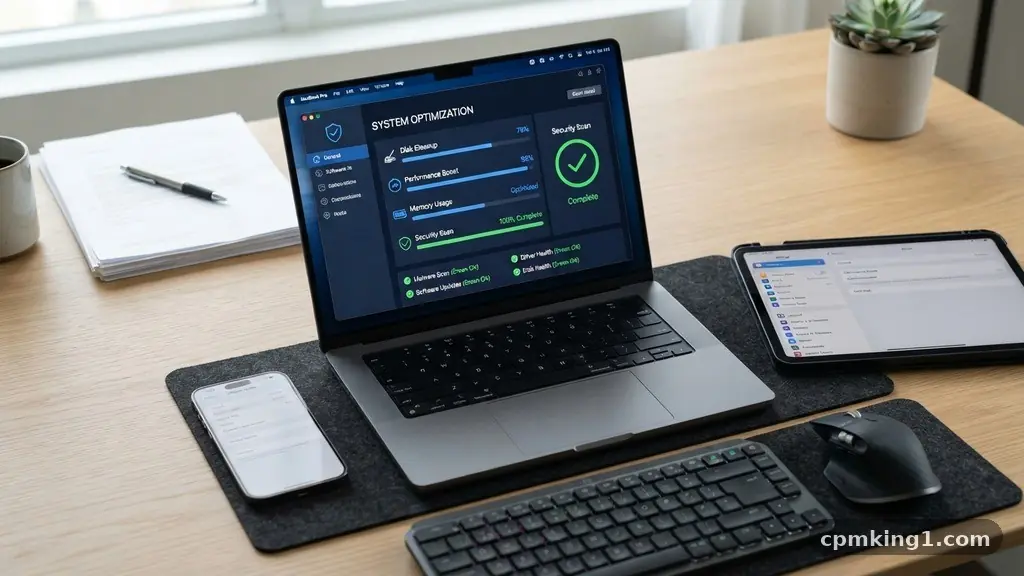
Building a Monthly Software and Device Maintenance Routine
Establishing a consistent rhythm for your technology ensures your digital life remains fast, secure, and reliable. By building a Monthly Software and Device Maintenance Routine, you prevent the accumulation of digital clutter and security vulnerabilities that often lead to performance degradation. This systematic approach allows you to catch minor issues before they escalate into costly repairs or data loss.
You will find that dedicating a few hours each month brings peace of mind, knowing your hardware and software are operating at peak efficiency. Taking control of your digital environment is a proactive step toward long-term productivity and hardware longevity, ensuring your devices stay ready for whatever task you have planned next.
Streamlining Your Operating System and Applications
The foundation of any effective maintenance plan begins with the software that drives your hardware. Over time, operating systems and installed applications accumulate temporary files, cache data, and background processes that eventually sap your processing power. Start your session by checking for official updates.
This is not just about getting new features; it is a critical component of patch management. Developers release these updates to close security loopholes that hackers might exploit. If you ignore these prompts, you leave your system exposed to known threats.
Beyond security, look at your installed software list. We often download programs for a single task and then forget they exist. Uninstalling unused applications is a simple way to reclaim space and reduce the number of background services competing for your system’s resources.
Be ruthless during this audit. If you haven’t opened a program in three months, it likely doesn’t deserve a permanent home on your drive.
Once the clutter is cleared, focus on system optimization. Use built-in tools like Disk Cleanup on Windows or the storage management settings on macOS to remove system logs, temporary update files, and browser caches. These files are often redundant after the initial installation or update process.
By clearing them out once a month, you keep your drive lean and prevent fragmentation issues. This simple habit maintains the responsiveness of your interface, making the entire user experience feel snappy and intentional rather than sluggish and bloated.
Managing Data Backups and Storage
Digital hoarding is a silent killer of storage capacity management. We tend to save every document, image, and download without a second thought. A monthly routine forces you to confront this buildup.
Start by identifying large files that are no longer needed, such as old video projects or duplicate photos. Moving these to long-term cold storage or deleting them entirely frees up high-speed space on your primary drive, which is vital for system stability.
After cleaning, verify your data backup strategy. It is not enough to simply have a backup; you must ensure it is actually working. Check your external drive or cloud storage account to confirm that your most important files have been synced recently.
A common mistake is assuming that an automated system is running perfectly without ever checking the logs. Open your backup software, run a manual test, and ensure your critical folders are included in the backup schedule.
Consider using a 3-2-1 strategy: three copies of your data, on two different media types, with one copy stored off-site. If you rely solely on a cloud service, ensure your cloud synchronization settings are correctly configured to avoid accidental deletions that mirror across all your devices.
If a file is deleted from your computer, you need to know if it is also being wiped from the cloud. Understanding these settings prevents the heartbreak of losing important documents due to a simple sync error.
Performing Thorough Malware and Security Checks
Modern cybersecurity hygiene requires more than just installing an antivirus program and forgetting about it. You need to actively participate in the health of your system.
Once a month, perform a full malware scanning routine using your primary security suite. While real-time protection is standard, a deep scan can often catch persistent threats or potentially unwanted programs that may have slipped through the cracks during daily browsing.
Pay attention to your browser security as well. Clear your cookies and site data for websites you no longer visit. Review your browser extensions—these are frequent entry points for malicious scripts.
If you see an extension you don’t recognize or no longer use, remove it immediately. Many users suffer from “extension creep,” where dozens of add-ons run in the background, slowing down page loads and tracking your activity.
Another vital aspect of security is password management. Use your monthly maintenance window to review your vault. Check if any accounts have been flagged in recent data breaches using a trusted service like Have I Been Pwned.
If a service you use has been compromised, change your password immediately. By making this a recurring task, you ensure that your security posture evolves alongside the ever-changing landscape of online threats, keeping your personal information shielded from unauthorized access.
Updating Drivers and Firmware
While software updates are common, many users overlook driver updates and firmware updates. These are the critical pieces of code that allow your operating system to communicate effectively with your hardware.
Outdated drivers can cause mysterious crashes, poor graphics performance, or connectivity issues with peripherals like printers and webcams. Check your device manufacturer’s website or your OS update settings to ensure your components are running the latest versions.
Firmware updates are particularly important for networking gear and motherboards. These updates often improve hardware stability and add compatibility for newer standards. However, be cautious; always read the release notes before applying a firmware update.
Some updates are optional and may introduce new bugs if your current setup is working perfectly. If you are not experiencing issues, you might choose to wait a few weeks to see if other users report problems with the new firmware.
Avoid the mistake of installing “driver updater” software found in random pop-up ads. These tools are often scams or contain bloatware that will degrade your system performance rather than help it.
Stick to official sources: your laptop manufacturer’s support page or the specific hardware component’s website. If you are using a custom-built desktop, check the motherboard manufacturer’s utility software, which is usually the safest way to manage these low-level updates.
Monitoring Battery Health and Power Efficiency
Your device’s battery is a finite resource that degrades over time. By incorporating battery health monitoring into your monthly routine, you can identify patterns that lead to premature wear.
Most modern laptops and smartphones provide built-in tools to check the maximum capacity of your battery compared to when it was new. If you notice a sharp decline, it might be time to adjust your charging habits, such as avoiding extreme heat or keeping the device plugged in at 100% for days at a time.
Check your power settings to see which applications are consuming the most energy. Sometimes, a background process you didn’t know was running is keeping your CPU awake, draining your battery much faster than necessary.
Use the power management dashboard to identify these culprits and terminate them. If you frequently work away from an outlet, this step is essential for maintaining your mobility.
Be mindful of physical battery health as well. If you notice your laptop chassis bulging or the trackpad becoming difficult to click, your battery may be swelling. This is a serious safety hazard.
Stop using the device immediately and contact the manufacturer for a replacement. While most batteries last for years, knowing the signs of failure prevents dangerous situations and ensures your device remains portable and effective for as long as possible.
Cleaning Physical Peripherals and Hardware
Hardware maintenance is not just about the internal code; it is about the physical state of your tools. A dirty keyboard, screen, or mouse can harbor bacteria and interfere with performance. Start by powering down your devices completely.
Use a microfiber cloth for screens—never use household glass cleaners, as they can strip the anti-reflective coating off your monitor. A slightly damp cloth with distilled water is usually all you need.
For keyboards, use a can of compressed air to dislodge dust and crumbs from beneath the keys. If you use a mechanical keyboard, you might want to remove the keycaps periodically for a deeper clean.
Don’t forget your mouse and its sensor; a speck of dust on the optical sensor can cause erratic tracking that makes your work frustrating. Wipe down your cables and charging bricks as well, looking for signs of fraying or exposed wires.
Peripheral cleaning also includes disinfecting surfaces. Use high-percentage isopropyl alcohol wipes on hard surfaces like your mouse and the outer casing of your laptop. Avoid getting liquid into any ports or vents.
By keeping your workspace clean, you prevent dust from being sucked into your laptop’s fans, which helps keep the internal temperatures lower. Cooler hardware runs more efficiently and lasts longer, making this physical task a direct contributor to your system’s longevity.
Running Hardware Diagnostics
Finally, perform a basic health check on your core components. Use your operating system’s built-in tools to run hardware diagnostics. This can reveal failing hard drives or memory errors before they cause a catastrophic crash.
If your computer supports it, access the BIOS or UEFI menu during startup to run a quick test on your RAM and storage drives. These tests usually take only a few minutes but can save you hours of troubleshooting later.
Check your storage drive’s SMART data. This is a monitoring system that reports on the reliability of your drive. If the status says “Caution” or “Bad,” it is time to move your data to a new drive immediately.
Do not ignore these warnings. A drive that shows signs of failure is a ticking time bomb. Replacing a drive is a standard task, but recovering data from a dead drive is incredibly expensive and often impossible.
If you are comfortable, open your computer case or laptop back panel (if it is user-serviceable) to check for dust buildup around fans and heat sinks. Use compressed air to clear out the vents.
Poor airflow is the primary cause of hardware throttling, where your computer slows itself down to prevent overheating. By ensuring your hardware can breathe, you protect your investment and maintain the high performance you expect from your machine.
Frequently Asked Questions
How often should I run a full malware scan?
While real-time protection is always active, running a full, deep scan once a month is a great practice. It serves as a safety net to catch any persistent threats that might have bypassed your background filters during your daily work.
Do I really need to update my drivers every month?
You don’t need to update every single driver every month, but it is a good idea to check for updates monthly. Focus on critical drivers like those for your graphics card, network adapter, and chipset, as these have the biggest impact on system stability and performance.
Is it safe to use third-party cleaner apps for system maintenance?
In general, it is better to stick to the built-in tools provided by your operating system, such as Disk Cleanup on Windows or the Storage management features on macOS. Many third-party “PC cleaner” apps are unnecessary and can sometimes introduce their own bloatware or cause stability issues.
What should I do if my battery health is declining?
If you notice a significant drop in battery health, start by checking your power settings to ensure no background apps are draining it unnecessarily. If the health percentage is physically low, consider limiting your charge to 80% if your laptop supports it, which can slow further degradation. If the battery is failing, contact the manufacturer for a professional replacement.
How do I know if my hardware is overheating?
If your computer fans are constantly running at high speed, or if you feel the chassis becoming uncomfortably hot during light tasks, you may have an overheating issue. You can use free software to monitor your CPU and GPU temperatures. If they consistently hit high levels while idle, it is time to clean your vents and check your internal cooling system.
Conclusion
Taking consistent care of your technology transforms your relationship with your devices. By building a Monthly Software and Device Maintenance Routine, you shift from a reactive state of fixing broken things to a proactive state of managing high-performance tools. The time you invest once a month pays dividends in the form of fewer crashes, faster load times, and a longer lifespan for your hardware.
Start small by picking one weekend each month to tick these items off your list. You will soon find that these habits become second nature, allowing you to focus on your work and creativity rather than troubleshooting technical glitches. Keep your systems lean and your data secure, and your gear will continue to serve you well for years to come.