Navigating the digital landscape often feels like handing over the keys to your home every time you download a new program. Learning the essentials of a Beginner’s Guide to Understanding App Permissions and Data Access empowers you to protect your personal information while still enjoying your favorite software. By taking control of these settings, you ensure that your digital footprint remains minimal and secure.
You will learn exactly how to vet requests for sensitive information, adjust your device settings, and recognize when an app is overstepping its boundaries. This knowledge is the first line of defense in maintaining your privacy in an increasingly connected world.
Evaluating Initial Permission Requests
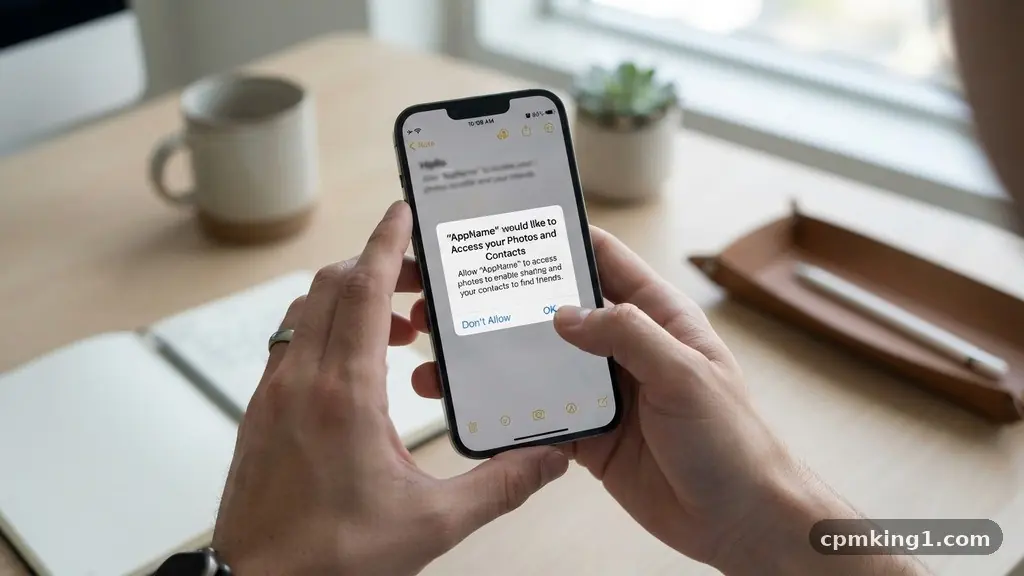
When you first install a new application, it frequently prompts you with a series of pop-up windows asking for access to various parts of your device. These requests aren’t just technical formalities; they are specific queries for permission to interact with your hardware or data.
The most common requests involve your camera, microphone, contacts, or location services. It is tempting to simply tap “Allow” on every screen to get to the main menu as quickly as possible, but this is a common mistake that often leads to unnecessary data harvesting.
Before granting access, take a moment to consider the app’s primary purpose. If you are downloading a simple flashlight app, there is absolutely no logical reason for it to request access to your contact list or your precise GPS coordinates. When an app asks for permissions that seem unrelated to its core functionality, it is a significant red flag.
Always pause and ask yourself if the request makes sense for the service you are trying to use. If the answer is no, you should deny the request and see if the app continues to function correctly without that specific feature.
Many modern mobile operating systems now allow you to choose “Only while using the app” or “Ask every time” instead of a blanket “Always allow” option. Choosing these more restrictive settings is a great way to maintain convenience without sacrificing your security.
By being deliberate during this initial setup, you effectively limit the scope of what the developer can collect. Remember that you are in charge of your device, and you have the right to curate which apps get to see your personal details.
Utilizing Built-in Privacy Dashboards
Both major mobile operating systems have introduced dedicated areas to help you monitor your digital footprint. On Android, this is often found within a dedicated privacy dashboard, while iOS provides similar transparency through its privacy settings menu.
These tools are designed to show you exactly which apps have accessed your data over the past 24 hours or the past week. Regularly checking these dashboards is a habit that can prevent silent data collection from going unnoticed for months at a time.
If you notice an app that you haven’t opened in weeks is still accessing your microphone or location, you should immediately revoke those permissions. The privacy dashboard makes this process incredibly easy by providing a direct link to the permission manager for each application.
You don’t need to be a tech expert to use these features; they are designed for the average user to see clearly what is happening behind the scenes. Using these tools regularly ensures that your previous choices remain aligned with your current preferences.
A common mistake is assuming that once you set a permission, it stays that way forever. Sometimes, software updates can reset permissions or add new features that require additional access.
By making it a monthly routine to open your privacy dashboard, you stay ahead of these changes. You can find detailed information on how to manage these settings by visiting the Federal Trade Commission guide on mobile privacy disclosures to better understand your rights as a consumer.
Managing Location Services and Geotagging
Location data is among the most sensitive pieces of information you carry. Many apps use your location to provide relevant weather reports or local news, but this same data can be used to track your habits and daily routines.
Understanding how to manage your location services is a core part of a Beginner’s Guide to Understanding App Permissions and Data Access. You should always distinguish between apps that truly need to know where you are and those that are just trying to build a profile of your movements.
When you manage these settings, look for the option to provide an “approximate” location rather than a “precise” one. For many apps, knowing your general city or neighborhood is sufficient, and they do not need to know your exact street address. This setting is a powerful tool for maintaining privacy while still enjoying location-based features.
Additionally, be mindful of background data usage related to location. Some apps track your location even when you aren’t actively using them, which drains your battery and creates a more detailed map of your life.
Always disable background location access for any app that doesn’t strictly require it to function. If you are using a navigation app, it makes sense for it to work in the background so you can hear turn-by-turn directions.
However, a retail app or a game has no reason to track your location when the app is closed. If you feel uneasy about an app’s location requirements, you can usually deny the permission entirely and manually enter your location when necessary.
Understanding the App Sandbox and System Security
The concept of an “app sandbox” is a fundamental security feature built into your smartphone. In simple terms, a sandbox acts like a secure container that prevents one app from accessing the data or files belonging to another app.
This is why your banking app cannot look at your photo gallery, and your social media app cannot read your private text messages unless you specifically grant permission. Understanding this separation helps you realize that your device is inherently designed to protect your data, provided you don’t accidentally bypass these protections by clicking “Allow” on every prompt.
While the sandbox is a robust layer of system-level security, it is not a perfect shield if you grant excessive permissions. If you give an app permission to access your entire file system, you are essentially breaking the seal of the sandbox yourself.
This is why it is critical to keep third-party app permissions as limited as possible. Never grant “Full Disk Access” or access to your entire contact list unless you have absolute trust in the developer and a clear need for that functionality.
Think of the sandbox as a locked door in your house. You control who has the key. When you grant a permission, you are handing over a key to a specific room.
If you hand out too many keys, the security of your home is compromised, regardless of how strong the locks are. By keeping your permissions granular, you ensure that even if one app has a security flaw, the rest of your data remains safely tucked away in its own isolated environment.
Recognizing Data Harvesting Red Flags
Data harvesting is the practice of collecting large amounts of information about your behavior, interests, and location to build a profile for advertising or other purposes. Many free applications monetize their services by selling this data to third parties. As you learn more about a Beginner’s Guide to Understanding App Permissions and Data Access, you will start to spot the patterns that indicate an app might be more interested in your data than in providing a quality service.
One obvious sign is when an app requires permissions that are completely unrelated to its function. A calculator app that wants access to your contacts, camera, and microphone is almost certainly engaged in data harvesting.
Another sign is when an app forces you to grant wide-ranging permissions just to launch the application. If the app refuses to run unless you agree to share your location, contacts, and browsing history, it is a strong signal that the developer does not respect your privacy.
Avoid downloading apps from unverified sources or third-party marketplaces that do not have strict oversight. Official app stores have processes to review data privacy policies, though they aren’t foolproof. Always take a few seconds to scroll down to the “App Privacy” or “Data Used to Track You” section on an app’s store page.
This provides a summary of what the developer collects and whether that data is linked to your identity. If you see a long list of data points being collected, it is often better to find a more privacy-focused alternative.
The Role of App Tracking Transparency
Modern mobile operating systems have introduced features specifically designed to curb third-party tracking. This is often referred to as “app tracking transparency.” When you open an app, it might ask for permission to track your activity across other companies’ apps and websites.
This is the primary way that advertisers build a massive, cross-platform profile of your interests. You should almost always select “Ask App Not to Track” when this prompt appears.
Choosing to opt-out of this tracking does not break the app; it simply limits the company’s ability to share your activity logs with data brokers. It is a simple, one-time decision that significantly reduces your exposure to targeted surveillance.
Many people fear that denying this permission will make their apps stop working, but this is rarely the case. Most developers include this request because it is profitable for them, not because it is necessary for the software to function.
Taking the time to review your tracking settings in your system menu is another proactive step. You can see a list of every app you have previously granted permission to track you and toggle those switches off immediately.
This is a very effective way to clean up your digital footprint and regain control over your online persona. By restricting this cross-app communication, you protect yourself from the invasive data collection practices that have become the standard in the tech industry.
Frequently Asked Questions
What should I do if an app stops working after I deny a permission?
If an app crashes or refuses to open after you deny a permission, first evaluate if the requested data is truly necessary for the app’s core task. If the app is a camera app and you denied camera access, it obviously won’t work. However, if a simple game stops working because you denied it access to your contacts, it is likely a bad actor. You can choose to grant the permission if you truly need the app, or simply delete the app and look for a more respectful alternative that doesn’t demand your personal information.
Are system apps safer than third-party apps regarding permissions?
System apps—the ones that come pre-installed on your phone—generally have higher levels of trust and are integrated into the operating system. However, they still collect data. While you often cannot uninstall these apps, you can still manage their permissions in the settings menu. Treat pre-installed apps with the same level of scrutiny as any other software. Check their location and background data usage periodically, as they can sometimes be the biggest contributors to your overall data consumption.
Does “deny” mean the app will never ask again?
In most cases, if you deny a permission, the app will respect that choice. However, some poorly designed apps may repeatedly prompt you for the same permission every time you open them. If you encounter this, it is usually a sign that the app is aggressive about data collection. If it becomes annoying, it is often best to remove the application entirely. You shouldn’t have to deal with constant pop-ups just to use basic software on your own device.
Can I see what data has already been shared?
Most platforms allow you to request a copy of the data that companies have collected about you. You can find these options in your account settings or through the privacy dashboard. While this won’t show you exactly who bought your data, it will give you a clear picture of what the app developer knows about you. It can be quite eye-opening to see how much information you have inadvertently shared over the years, which often motivates people to be more careful moving forward.
Moving Forward with Digital Confidence
Mastering the basics of a Beginner’s Guide to Understanding App Permissions and Data Access is a continuous process of staying alert and making intentional choices. You don’t need to be a security expert to make a significant difference in your personal privacy; you simply need to be mindful of what you share and why.
By regularly auditing your permissions, utilizing privacy dashboards, and choosing to opt-out of unnecessary tracking, you shift the balance of power back to yourself. Your smartphone should be a tool that serves your needs, not a device that exploits your personal information for profit.
Start today by reviewing the apps you use most often and checking their current access levels. If you find something that doesn’t belong, turn it off and observe how the app behaves. You will likely find that most of your applications continue to perform perfectly well without access to your contacts or precise location history.
Embrace this newfound awareness and continue to explore the privacy settings available on your device. Taking these small, consistent steps ensures that you remain the true owner of your digital life.