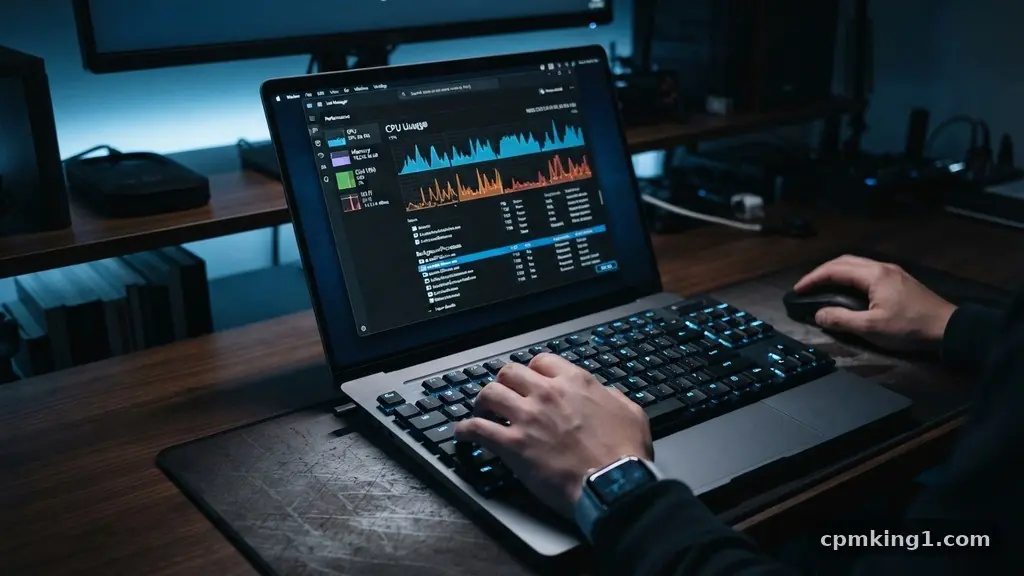
Reducing Unnecessary Background Apps on a Windows Computer is one of the most effective ways to regain control over your machine’s performance. When too many programs linger in the shadows of your operating system, they compete for limited hardware capacity, often leading to frustrating slowdowns and sluggish responsiveness. By clearing out these hidden resource hogs, you effectively reclaim your processor cycles and memory for the tasks that actually matter to you.
This process isn’t just about speed; it’s about creating a leaner, more efficient computing environment that respects your time and hardware. You will discover how to identify these silent resource consumers and silence them for good.
Leveraging Task Manager for Immediate Relief

The Task Manager is your primary command center for monitoring what is happening under the hood of your machine. When you feel your computer stuttering, the first step is to open this utility by pressing Ctrl + Shift + Esc. Once the window appears, click on the “Processes” tab to see a real-time list of every active program and background process currently running.
You should sort this list by clicking the “CPU” or “Memory” column headers to identify the highest resource consumers. Often, you will find applications you haven’t opened in hours—or even days—still sitting in your active memory.
A common mistake is blindly ending processes you don’t recognize. While it is tempting to clear everything that looks suspicious, some of these items are critical Windows system services that keep your display, audio, and network connections functional. If you aren’t sure what a specific process does, right-click it and select “Search online” to see if it belongs to a core system component or a third-party application.
Once you confirm it is a non-essential program, you can safely select “End task.” This provides an immediate, temporary reduction in resource consumption, though it won’t prevent the app from launching again the next time you restart your PC.
Managing Startup Apps to Prevent Future Clutter
Many applications are designed to launch automatically the moment you log into Windows, which is the primary reason your machine feels slow right after booting up. These startup apps are notorious for hiding in the background, waiting for you to use them, even if you only need them once a week.
To manage these, open your Task Manager again and navigate to the “Startup apps” tab. Here, you will see a list of every program configured to launch at boot, along with an assessment of its “Startup impact.”
Focus your attention on programs marked with “High” startup impact that you rarely use. Simply right-click any offending entry and select “Disable.” This does not delete the program or prevent you from using it later; it merely stops it from initiating automatically when you log in.
A frequent error here is disabling essential drivers, such as audio controllers or security software. If you see a program from a reputable manufacturer like Intel, Realtek, or your antivirus provider, leave it alone. The goal is to prune the “nice-to-have” software that silently eats up your system resources from the very moment you start your day.
Utilizing Windows Settings for Store App Control
Modern Windows versions offer a dedicated menu for managing background permissions for Microsoft Store apps. This is a separate layer of control from traditional desktop applications. To access this, open your Windows Settings, navigate to “Apps,” and then select “Installed apps.”
While this list helps you remove software you no longer need, you should specifically look for the “Background apps” permissions in older versions or the individual app settings in Windows 11. By default, many of these apps are granted permission to receive information, send notifications, and update themselves even when they are not actively open.
You can visit the official Microsoft support portal to learn more about how specific system configurations interact with modern app behavior. The key here is to toggle off background access for applications that don’t need real-time data to be useful. For example, a calculator or a simple note-taking app does not need to run in the background.
By restricting these permissions, you directly improve your system’s power efficiency and reduce unnecessary CPU usage. Users often forget to check this menu after installing new software, so making this part of your monthly maintenance routine can keep your system running lean over the long term.
Optimizing Windows Services for Advanced Users
Windows Services are the backbone of the operating system, running deep in the background to handle everything from print spooling to update checks. While most of these are essential, some services—such as those for rarely used hardware or specific diagnostic tools—can be set to “Manual” instead of “Automatic.”
You can access these by typing “services.msc” into your search bar. This opens a comprehensive list where you can inspect the status and startup type of every background service on your machine.
Be extremely cautious here, as disabling the wrong service can break core functionality or prevent your computer from booting correctly. Only modify services that you are certain are unnecessary for your specific workflow. For instance, if you never use a printer, you might consider disabling the “Print Spooler” service, though this is rarely recommended for the average user due to potential dependencies.
The best approach is to research each service before making changes. If you are unsure, leave it as it is. This level of optimization is best reserved for those who have a clear understanding of their system’s architecture and want to squeeze out every drop of performance.
Reducing Resource Consumption via Registry and Group Policy
For advanced performance optimization, some users turn to the Registry Editor or Group Policy to disable specific background behaviors that cannot be toggled through the standard interface. These tools allow you to change deep-seated configuration settings that control how Windows handles telemetry and background data collection.
While these methods can be highly effective, they carry a significant risk of system instability if a mistake is made. Always create a system restore point before attempting to modify any registry keys or policy settings.
A common application of this is disabling background telemetry or automated diagnostic reporting that runs constantly. By modifying these registry values, you can effectively “silence” parts of the OS that are constantly checking in with servers, thereby saving on network bandwidth and CPU cycles.
However, this is largely unnecessary for most users and should only be undertaken if you are experiencing severe performance issues that standard methods haven’t resolved. Remember that Windows updates can sometimes reset these changes, so if you choose this path, you will need to keep a record of what you have modified to ensure your system remains stable over time.
Monitoring Power Efficiency and Battery Impact
Background apps are not just a concern for desktop users; they are a primary culprit for poor battery life on laptops. Every process running in the background demands a slice of your battery’s energy, which cumulatively leads to faster discharge times.
Windows provides a built-in power usage tracker that shows you exactly which apps have been consuming the most energy over the last 24 hours. You can find this in your system settings under “Battery” or “Power & battery.”
Check this list regularly to spot “vampire” applications that are draining your battery while you aren’t even using them. Often, you will find a browser or a communication app that is running heavy background tasks. Once you identify these, you can adjust their settings to prevent them from running while on battery power.
This simple adjustment often provides a noticeable boost in how long your device lasts away from a wall outlet. Prioritizing efficiency in your background app management is one of the most effective ways to extend the lifespan of your hardware and ensure your device is ready when you need it most.
Common Performance Bottlenecks and How to Avoid Them
Even after cleaning up your startup items and background permissions, you might still encounter performance bottlenecks. One of the most frequent culprits is the accumulation of temporary files and cache data from background apps that have been left to run indefinitely. While Windows does a decent job of managing these, manually clearing your cache or using the “Disk Cleanup” tool can help keep things moving smoothly.
Another common mistake is installing “performance booster” software that claims to manage background apps for you. In reality, these programs often add more bloat to your system than they remove.
Stick to the built-in Windows tools whenever possible. They are designed by the developers of the OS to interact safely with the system architecture. Avoid the temptation to install third-party task killers or “system optimizers” that promise to speed up your computer with a single click.
These tools often run their own background processes, which creates a cycle of inefficiency. By keeping your system clean and relying on native Windows settings, you maintain a level of transparency and control that external software simply cannot provide. Consistent, manual maintenance is always more reliable than automated software that you don’t fully understand.
FAQ: Understanding Background App Management
Why does my computer continue to run apps I thought I closed?
Many modern applications are designed to minimize to the system tray rather than closing completely when you click the ‘X’ button. This is intended to keep them ready for quick access, but it keeps them active in your RAM. You can usually find these in the small arrow icon on your taskbar, where you can right-click and choose “Exit” or “Quit” to fully shut them down.
Is it safe to disable all background apps?
No, it is not safe to disable everything. Many background processes are vital for system stability, security updates, and hardware drivers. Always focus on third-party applications or non-essential features, and never disable a process unless you have confirmed that it is not required for your system to function correctly.
How often should I check my startup applications?
It is a good habit to check your startup list once every few months or whenever you install a new, large software suite. Many installers automatically add themselves to the startup list without explicitly asking, so a quick quarterly audit keeps your boot times short and your system responsive.
Does reducing background apps actually improve gaming performance?
Yes, it can. Gaming is a resource-intensive task that requires as much CPU and RAM as possible. By clearing out background apps, you free up these resources, which can help reduce stuttering, improve frame rates, and prevent unexpected background updates from interrupting your gameplay.
What if I disable a service and my computer starts acting up?
If you run into issues, you can usually reverse the change by opening the Services or Task Manager and re-enabling the item you disabled. If you cannot remember which service you changed, look for the ones marked as “Disabled” and return them to “Manual” or “Automatic” as they were previously set.
Conclusion
Managing your system’s active processes is a vital skill for anyone looking to get the most out of their hardware. By systematically reducing Unnecessary Background Apps on a Windows Computer, you transform your machine from a cluttered, sluggish device into a responsive tool that works exactly as you intend. The steps outlined—from pruning your startup list to monitoring your power usage—provide a clear path toward a more efficient computing experience.
These small, consistent efforts pay off in saved time and reduced frustration. Start with your startup list today and enjoy the immediate difference in your system’s responsiveness. If you have questions or want to share your own tips for maintaining a clean system, feel free to reach out and keep the conversation going.